
Use this guide to set up Raizzon One as the workspace owner. Have access to your work email and decide what to call your business, legal entity and first operating location.
Create and verify your account
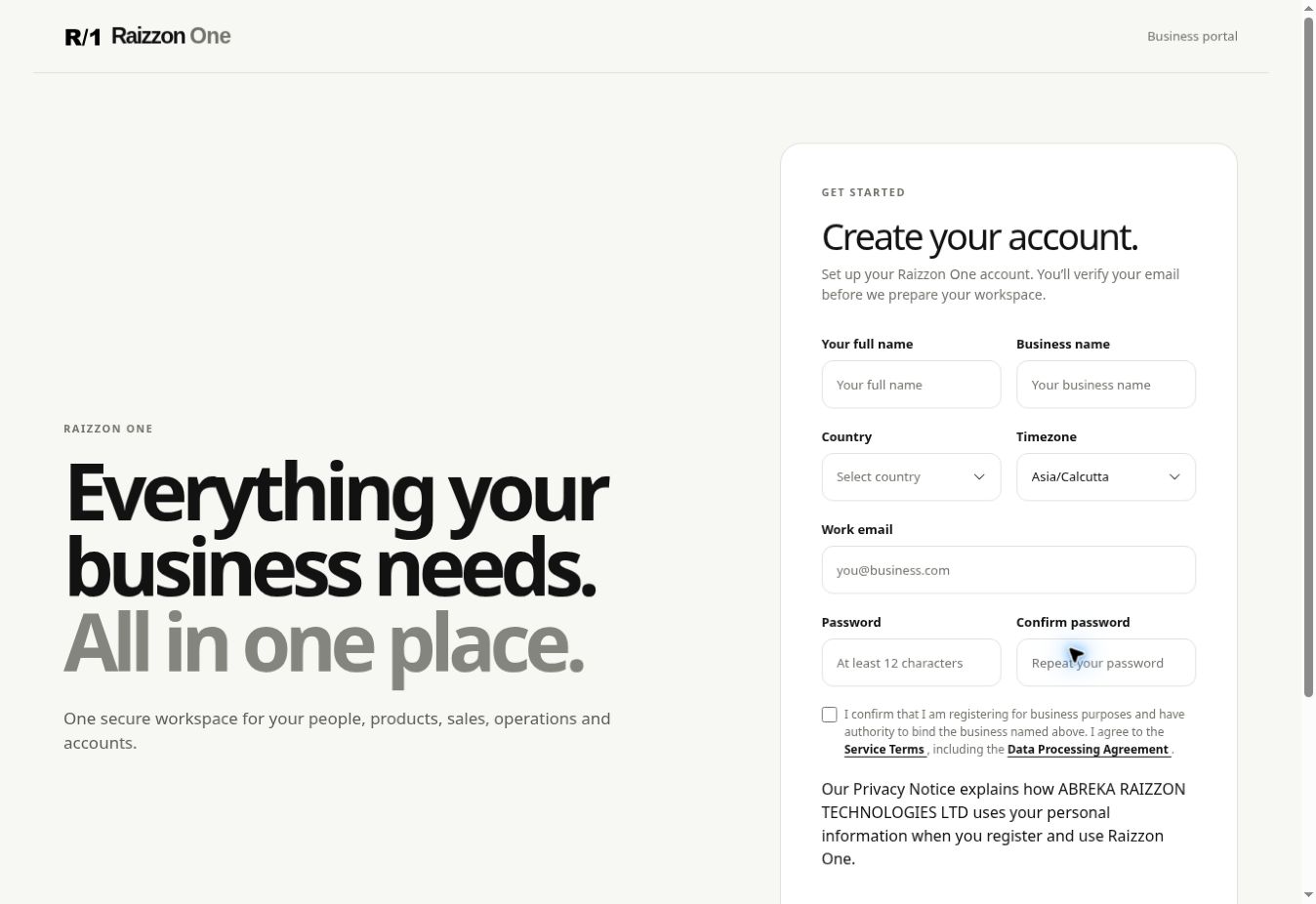
- Open the Raizzon One signup page.
- Enter your full name and business name. Select your country and check the timezone.
- Enter your work email and choose a password with at least 12 characters. Enter it again in Confirm password.
- Review the Service Terms and Data Processing Agreement. Confirm that you are registering for business purposes and have authority to accept the terms on behalf of the business, then select Create account.
- Open the verification link sent to your work email. If the email has not arrived, check your spam or junk folder.
- When you see Email confirmed, select Continue to sign in. Sign in using the email and password you registered with.
Prepare your business and first location
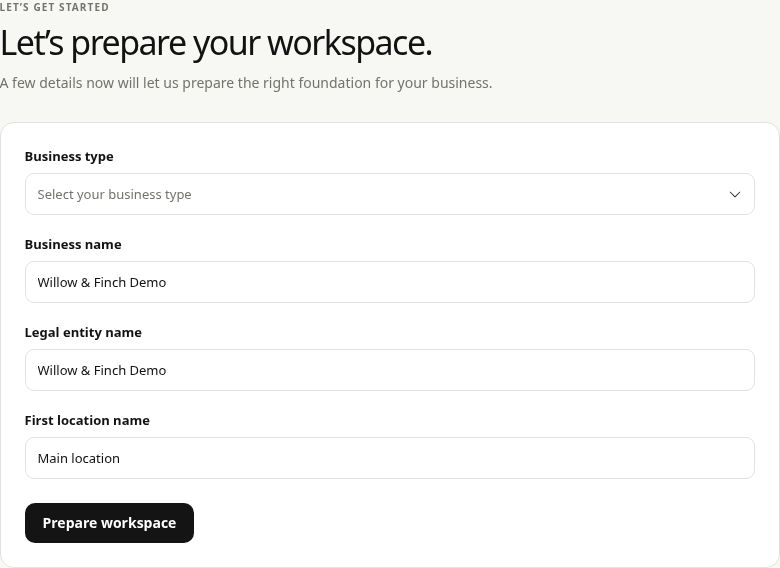
On Let’s prepare your workspace, check the details below.
- Business type determines which starter catalogue is offered. Choose Other business if none of the listed types fits.
- Business name is the name you use for the business in Raizzon One.
- Legal entity name is the official name of the company or other entity operating the business.
- First location name identifies where you work, such as your shop, office or warehouse.
Select Prepare workspace and keep the page open while Raizzon One creates your first legal entity and location.
Select your working location
When Your workspace is ready appears, look for Select your working location. If it is shown, select your location and choose Use this location. The location needs a valid trial or an active subscription.
Complete starter setup
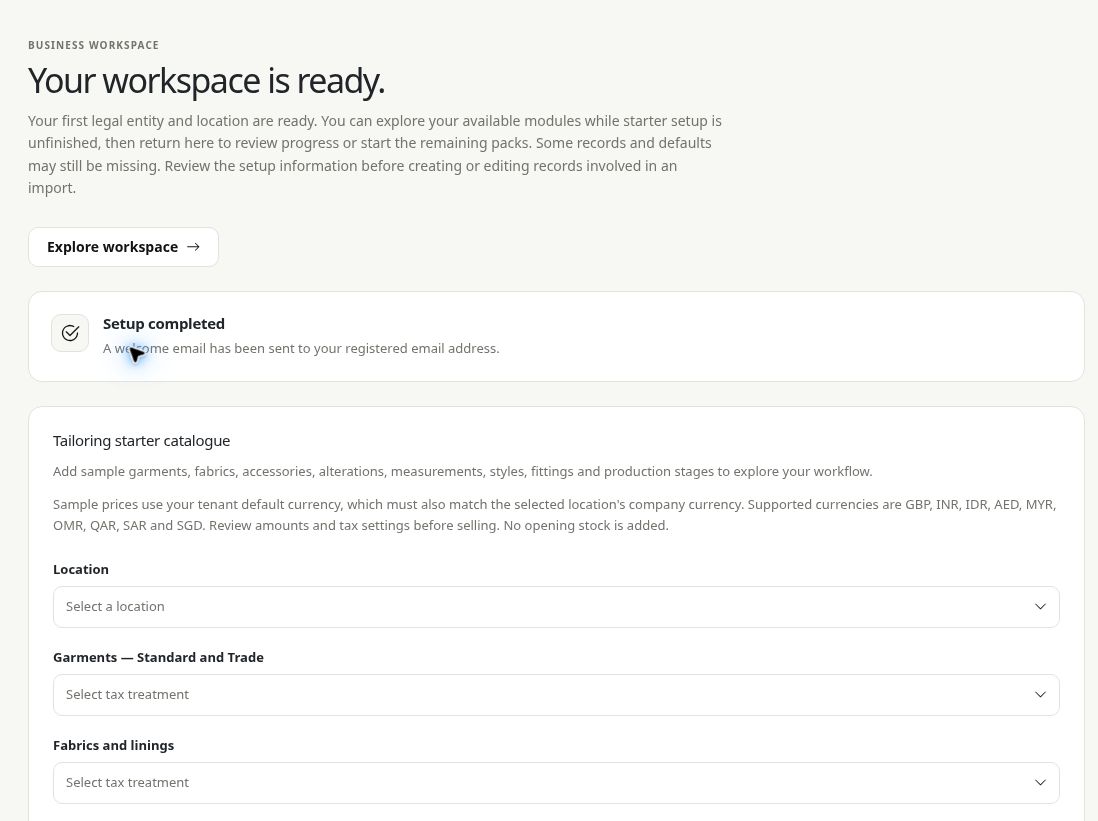
- Starter catalogue. If your business type offers one, choose the destination location and complete the fields shown. For example, the tailoring catalogue asks how tax applies to the sample prices for each item group. Those choices describe the sample prices. Tax rates are configured separately. Select Import starter catalogue and wait for confirmation. If you selected Other business, proceed to accounts setup.
- Accounts setup. Choose a location if prompted, then select Prepare accounts setup. Raizzon One prepares the accounting foundation, including payment methods and example bank and cash accounts. It adds no opening balances or transactions.
- Master setup. After accounts setup completes, select Prepare master setup. This prepares shared settings such as standard user roles, document numbering and print settings, along with sample records.
Keep the setup page open while an import runs. The progress bar shows completed stages. Individual stages can take different amounts of time. If the app offers Retry setup after a failure, use that action. If the error persists, contact Raizzon One support with the step name and error shown.
Open your workspace
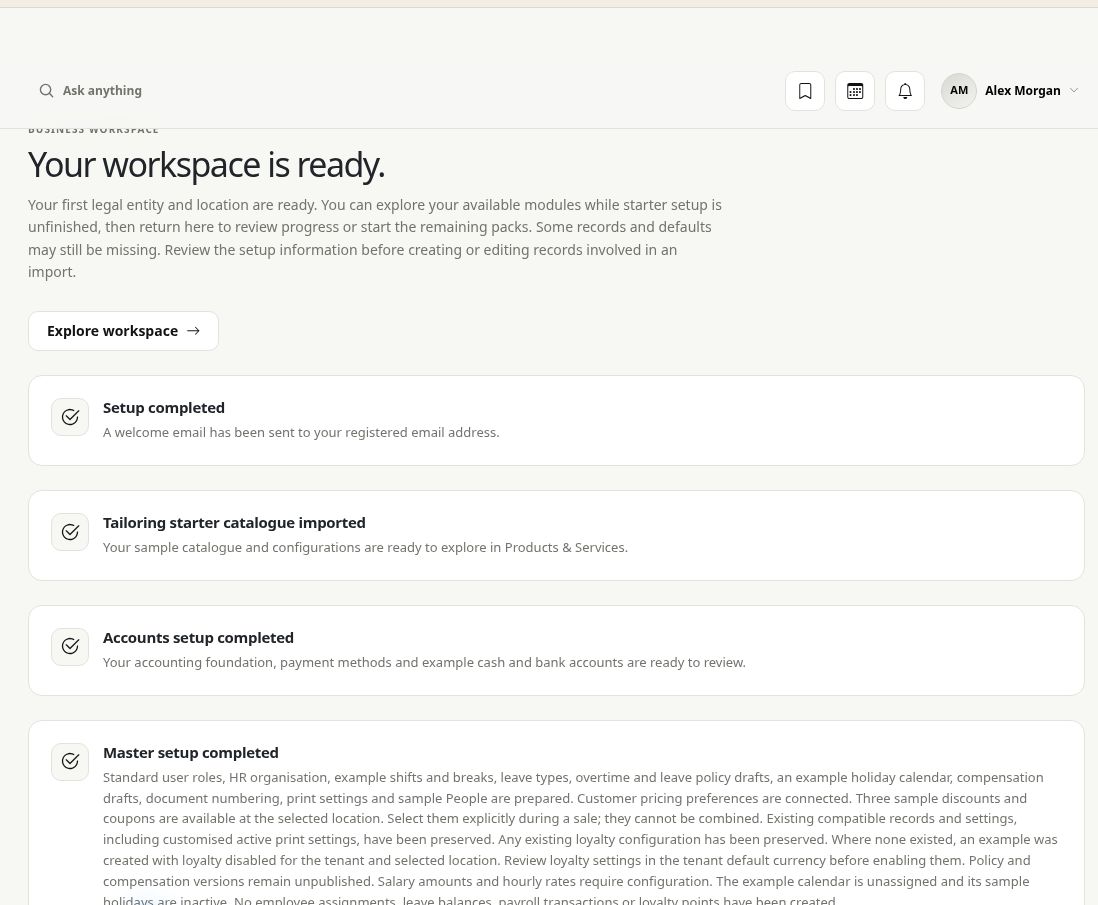
Select Explore workspace to open the dashboard. If you open it before starter setup finishes, use Review setup or View progress in the setup banner to return. If you see Continue to workspace after setup completes, you can also use that link.
Before recording live transactions, review the sample catalogue, prices, accounts and settings for your business and location.