
When a customer accepts an estimate, convert it to an order so your team can confirm the sale and handle invoicing and delivery.
Find and convert the estimate
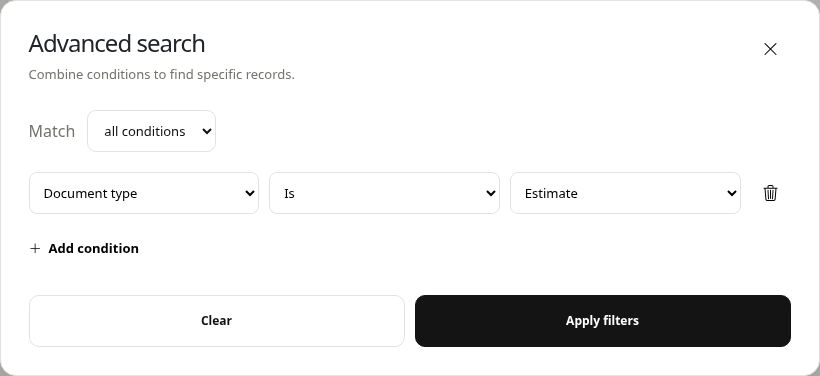
- Open Sales & Orders → Sales / POS and select Advanced search.
- Set the condition to Document type → Is → Estimate, then select Apply filters.
- Open the estimate and check the customer, items, quantities and total. If an Estimate valid until date is shown, check that it still reflects what you agreed with the customer.
- Select Convert to order and follow the prompt. If the app submits the conversion for approval, check the record again once the request has been reviewed.
Confirm the draft order
After conversion, review the draft order and make any changes agreed with the customer. Select Confirm order when the details are ready and follow any approval prompt.
Once the order is confirmed, you can create an invoice or record a delivery when those actions are available.