
Use a sales order to record what a customer has agreed to buy. Before starting, check that you are working in the location that will handle the sale.
Enter the order
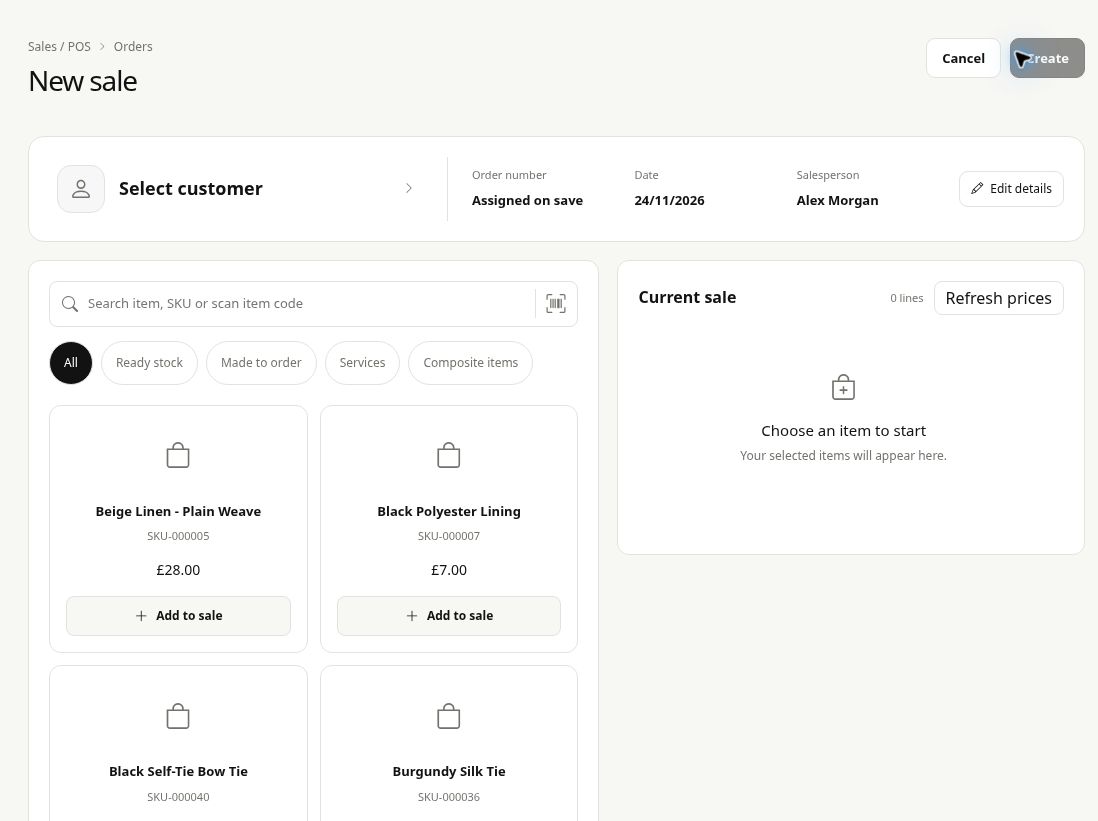
- Open Sales & Orders → Sales / POS and select New order.
- Click Select customer, search for the customer and choose their record. If you need to create the record first, see Add a customer.
- Use Search item, SKU or scan item code to find the products or services the customer is buying. Select Add to sale or Choose options, depending on the item, and complete any details shown.
- In Current sale, review the items, quantities, prices, discounts and taxes. Check the order total and currency.
- Select Create, then open the saved draft if it doesn’t open automatically.
Confirm the order
When the customer has agreed to the order, open the saved draft and select Confirm order. Review the prompt and follow the steps shown. If your workspace requires approval, follow the approval prompt and check the order status after the request has been reviewed.
Check what still needs to happen
Use the order record to track invoicing and delivery. Confirming the order records the sale agreement. Check the relevant sections of the order separately to see whether an invoice has been issued, payment has been recorded or items have been delivered.