
A user role controls what someone can see and do in Raizzon One. For example, a role can allow someone to view purchase orders and create drafts while requiring approval for edits.
Set up the role
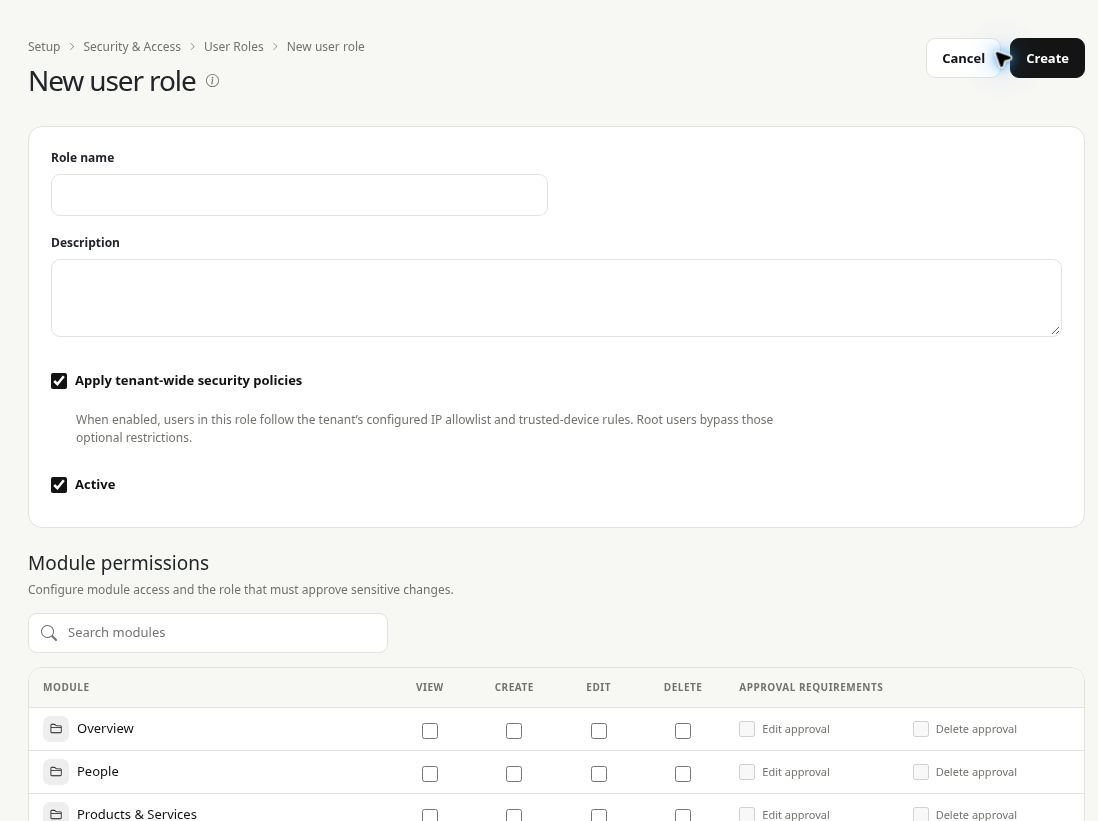
- Open Setup → Security & Access → User Roles and select Add user role.
- Enter a Role name that describes the responsibilities it covers. Add a Description so other administrators know when to use it.
- Keep Apply tenant-wide security policies enabled if users in this role should follow your configured IP allowlist and trusted-device rules. Keep Active selected if the role is ready to use.
- Under Module permissions, use Search modules to find the modules the role needs. Select View, Create, Edit and Delete as appropriate for each module.
- If edits or deletions need review, select Edit approval or Delete approval and choose the approval role where prompted.
- Review the permissions and select Create.
Assign the role to a user
Open Setup → Security & Access → Users and select the role in User role when creating or editing a user. Check their Location access separately before saving. For the full setup, see Add a workspace user.