
Use Expenses to record a business expense you paid immediately or one you’ll pay to a supplier later.
Create the expense
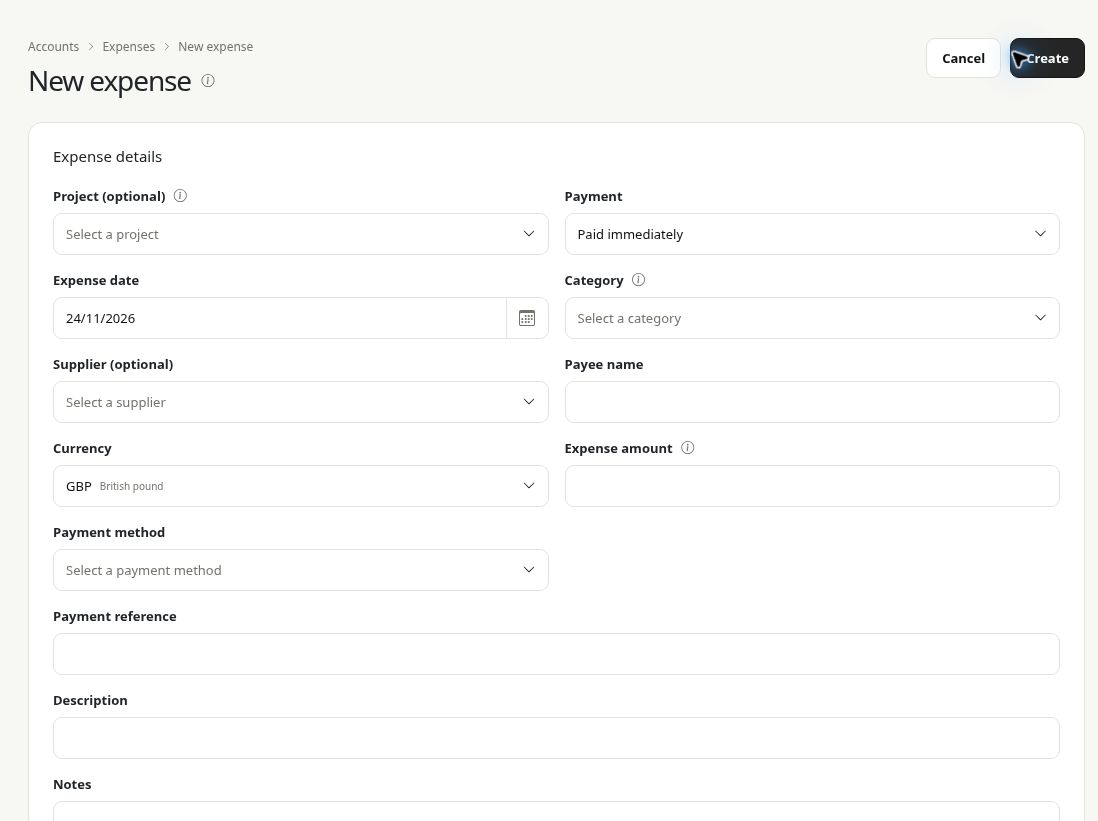
- Open Accounts → Expenses and select Add expense.
- Under Payment, choose Paid immediately if the expense has already been paid, or Payable later if payment is still due to a supplier.
- Check the Expense date and choose the Category. Enter the supplier or payee details shown for your payment option.
- Check the Currency and enter the Expense amount. For an immediate payment, select the Payment method and complete any account or reference fields shown.
- Add a Description if it will help identify the expense. Review the tax details and totals against your receipt or supporting document.
- Select Create to save the draft.
Review and post the expense
Open the saved expense and check its details and totals. Select Post expense if you can post directly. If the app shows Submit for posting, follow the approval prompt and check the status after the request is reviewed.
Check that the expense is Posted. For an expense marked Payable later, record the actual payment separately when you pay the supplier.