
Use Quality Control to inspect a production process that has QC points configured.
Find the process to inspect
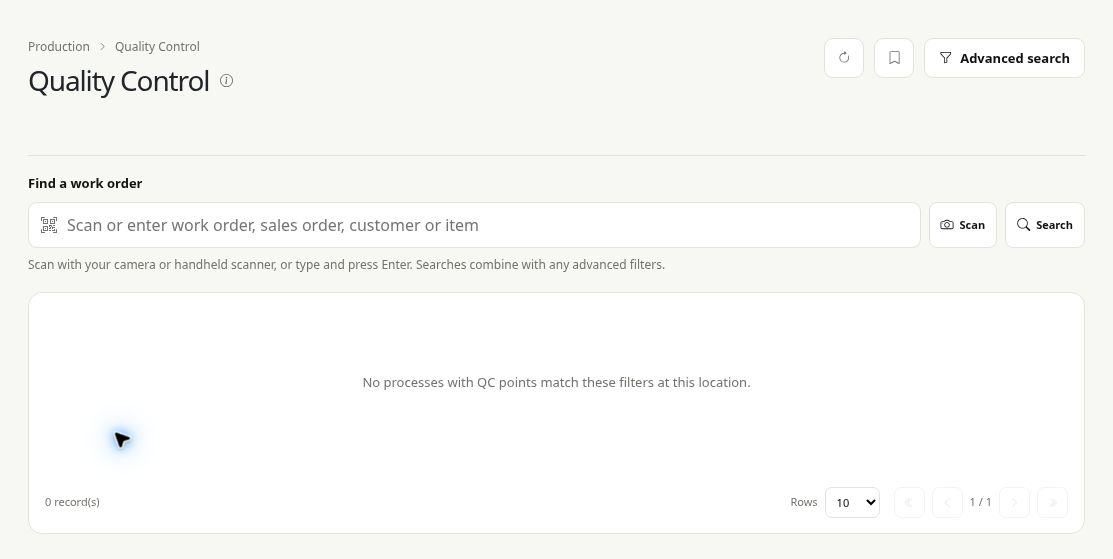
- Open Production → Quality Control.
- In Find a work order, search by work order, sales order, customer or item. You can also scan a work order label.
- If you need to narrow the list, open Advanced search and filter QC progress by Waiting for QC or QC started.
- Check the Process on the matching row. Select Inspect to start, Continue QC to resume, or View QC to review the inspection.
Complete the checklist
- Enter the result for each check. Depending on the checklist, you may need to select Pass or Fail, enter a measurement, provide a text answer or answer yes or no.
- Complete all required checks and any checks that can block completion. If you need to finish later, select Save draft when available.
- Select Finish QC or Submit QC for approval, depending on the action shown. If you submit it for approval, check the inspection again after the request is reviewed.
Return to the Quality Control list and check the QC status. If it shows Failed, use View QC to review the results and identify the checks that failed.
If the job is missing, check your working location and clear any filters you no longer need. The list shows processes with QC points configured.