
Use a work-order transfer when another location will take over production. Start in the location sending the work orders.
Create the transfer
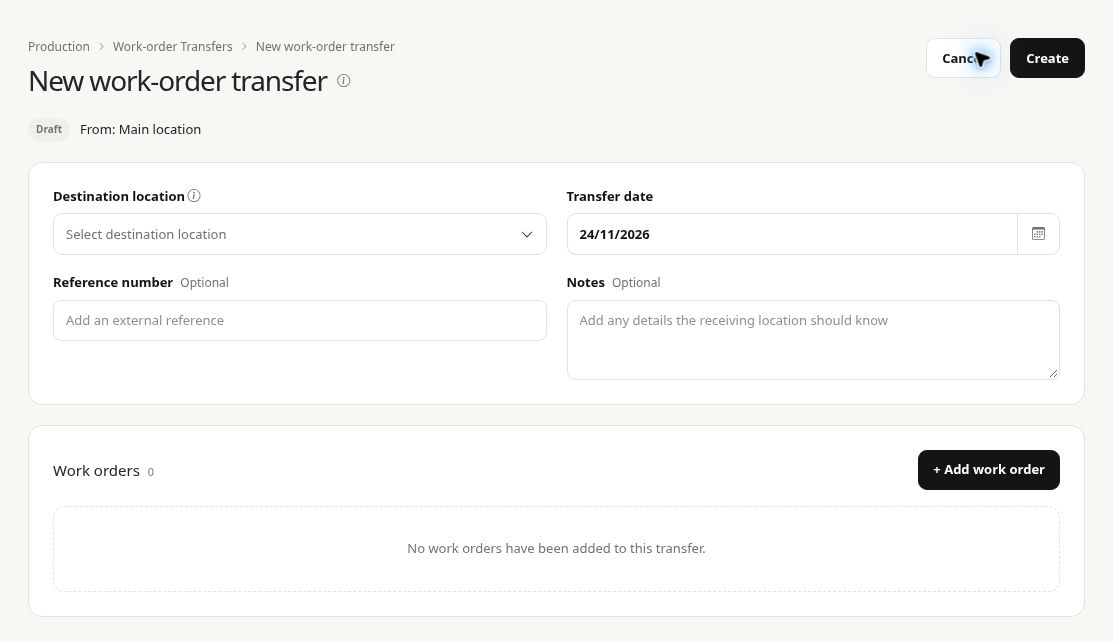
- Open Production → Work-order Transfers and select Add work-order transfer.
- Check the From location, select the Destination location and enter the Transfer date.
- Select Add work order and choose the jobs you’re sending.
- Add a Reference number or Notes if they will help the receiving team identify the transfer.
- Select Create to save the draft.
Submit and dispatch
Open the draft and select Submit transfer or Request approval, depending on the action shown. Wait for the transfer to be approved before dispatching it.
When the work orders leave, select Dispatch work orders or Request dispatch. Enter a dispatch date on or after the transfer date and follow the prompt. Check that dispatch is complete before treating the work orders as in transit.
Record receipt at the destination
Switch to the destination location and open the transfer under Production → Work-order Transfers.
Select Receive work orders or Request receipt. Enter a receipt date on or after the dispatch date and select the work orders that actually arrived. If some are still in transit, record their receipt when they arrive.
Check the transfer’s received count to see how many work orders are still outstanding.