
Use Employees to set up a person for HR & Payroll. The employee’s People record holds their name and contact details. Add their employment details from the saved record.
Create the employee record
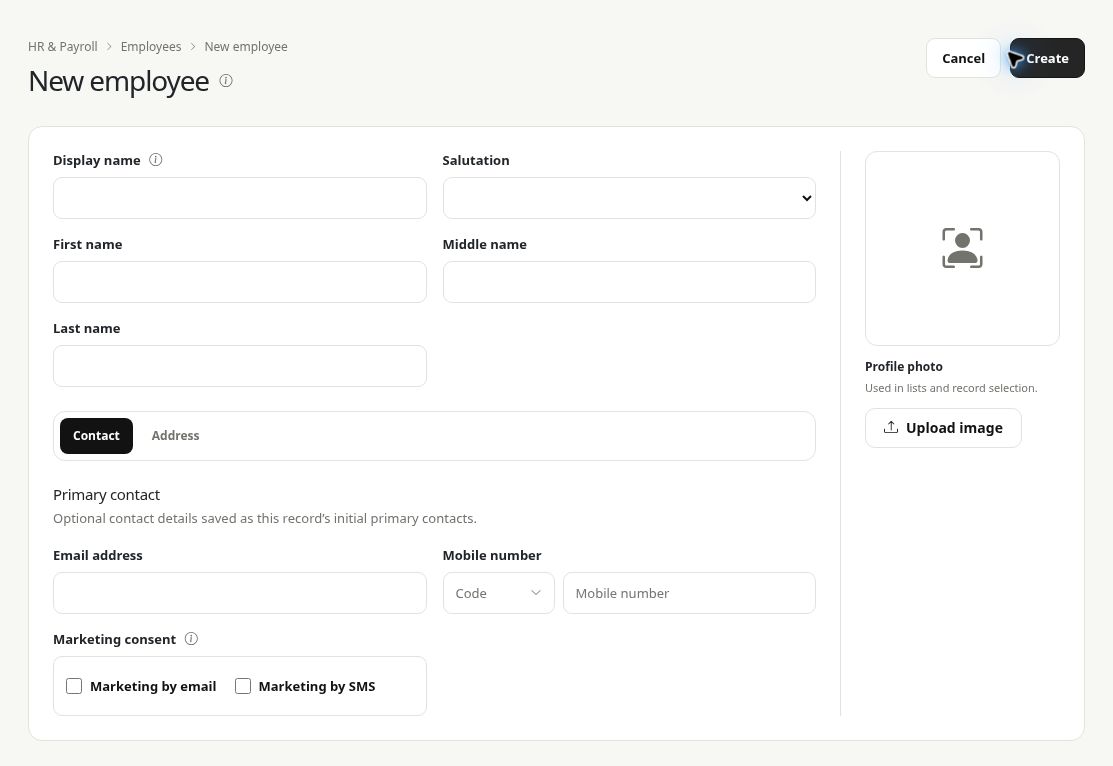
- Open HR & Payroll → Employees and search for the employee. If their record already exists, open it.
- If the person is already in the shared People directory, review that record and add the Employee role if available to you. See Add a person or organisation.
- For a new record, return to Employees and select Add employee.
- Enter a Display name your team will recognise and fill in the name fields as needed.
- Use Contact to add their primary email address or mobile number, and Address to enter a primary address if needed.
- Select Create.
Add employment details
Open the saved employee record and select Employments. Select Add employment when available and enter the details for that employment.
If you can open the employee record but cannot add an employment, ask your workspace administrator to check your access.