
An employment record holds the terms of an employee’s work at a location. If the employee is missing from HR & Payroll → Employees, see Add an employee.
Create the employment record
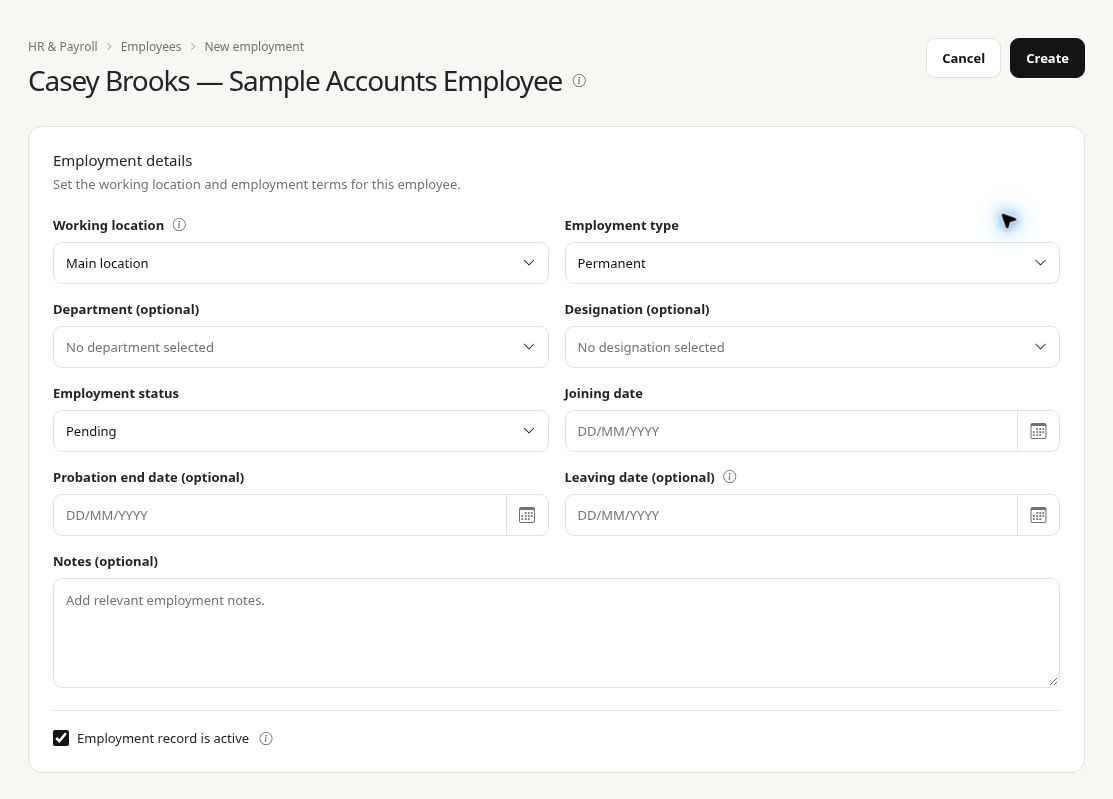
- Open HR & Payroll → Employees and select the employee.
- Open Employments and select Add employment.
- Select the Working location and Employment type.
- Choose the Employment status and enter the Joining date. Review the default status and select the one that matches the employee’s current situation.
- Add a Department, Designation or Probation end date if applicable. Enter a Leaving date if it is already known.
- Review the details and select Create.
Review the saved employment
Open the record from the employee’s Employments list. Check that the working location, status and joining date are correct. Depending on your access, you can continue setting up Attendance & Schedule, Compensation, Policies and Payment details from the employment record.
If the working location is missing from the form, ask your workspace administrator to check your access to that location.