
Use your own Paddle account to accept payments for eligible software and digital products. Use the connection only for sales of the Paddle product configured on it.
Add the Paddle connection
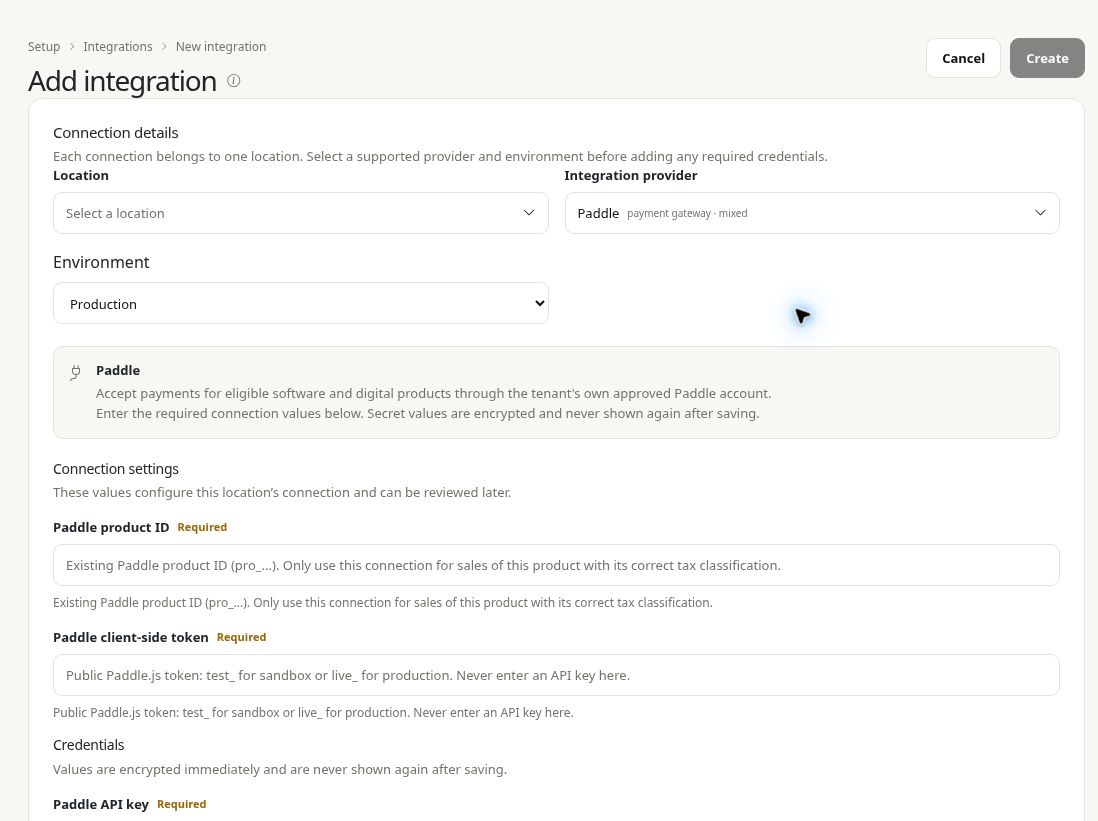
- Open Setup → Integrations → Location Integrations and select Add integration.
- Select the Location and choose Paddle as the Integration provider.
- Choose Sandbox for testing or Production for live use. Use the product and credentials from the selected environment.
- Enter the Paddle product ID for the product you’re selling. Check that the product has the correct tax classification in Paddle.
- Enter the Paddle client-side token under Connection settings and the Paddle API key under Credentials. If you’ve configured a Paddle webhook destination for this connection, enter its Paddle webhook endpoint secret in the corresponding field.
- Select Create. Open the saved connection and select Verify Paddle when available. Once verification succeeds, enable the integration when you’re ready to use it.
Generate a Paddle payment link
- Map the Paddle payment method to the bank account you’ll use for payment requests at this location.
- Open an eligible sales order and follow Request payment for a sales order.
- Select the bank account, then choose the configured product under Paddle payment (optional). If no product appears, check the payment method mapping for that bank account.
- Review the requested amount, which includes any applicable Paddle tax. Select Generate payment links and check that a Paddle link appears.
Use Refresh payment status on the saved request when you need to check the payment.