
Connect Stripe to the location that will send payment requests. Use Sandbox for testing so you can check the setup before sending live links to customers.
Add the Stripe connection
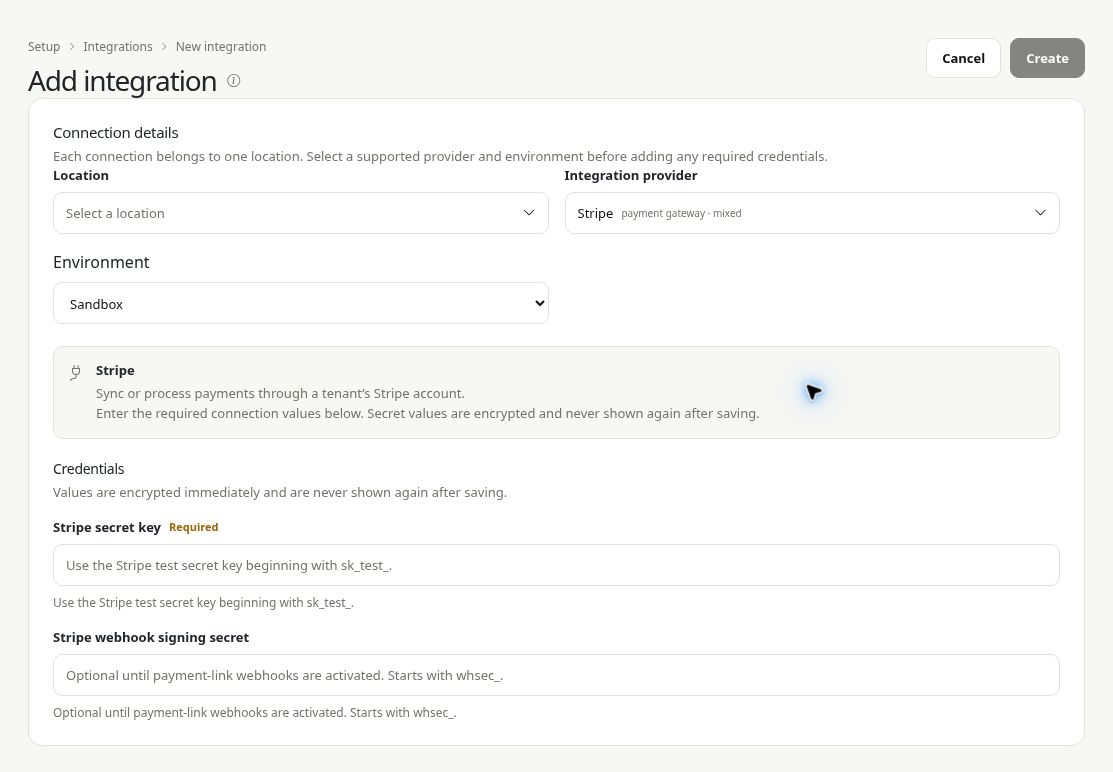
- Open Setup → Integrations → Location Integrations and select Add integration.
- Select the Location and choose Stripe as the Integration provider.
- Select Sandbox for testing or Production for live use.
- Enter the Stripe secret key for the selected environment. The Stripe webhook signing secret is optional until you activate payment-link webhooks.
- Select Create.
Check the payment method and bank account
Make sure the Stripe payment method is configured for the location and mapped to an active bank account eligible for the payment request. If more than one gateway is enabled for the request, check that their payment methods are mapped to the same active bank account.
Test a payment request
Open an order for the location and follow Request payment for a sales order. Check that Generate payment links returns a Stripe link. In Sandbox, complete a test payment and use Refresh payment status to check the result.
Set up automatic payment updates
If you want Stripe to send payment updates automatically, open the saved integration and follow its webhook instructions. Use the Webhook URL and events shown on the record, and save the matching Stripe signing secret in Raizzon One. Complete a test payment to verify webhook delivery.