
Set up Wafeq UAE e-Invoicing for the company that will use the connection.
Create the company integration
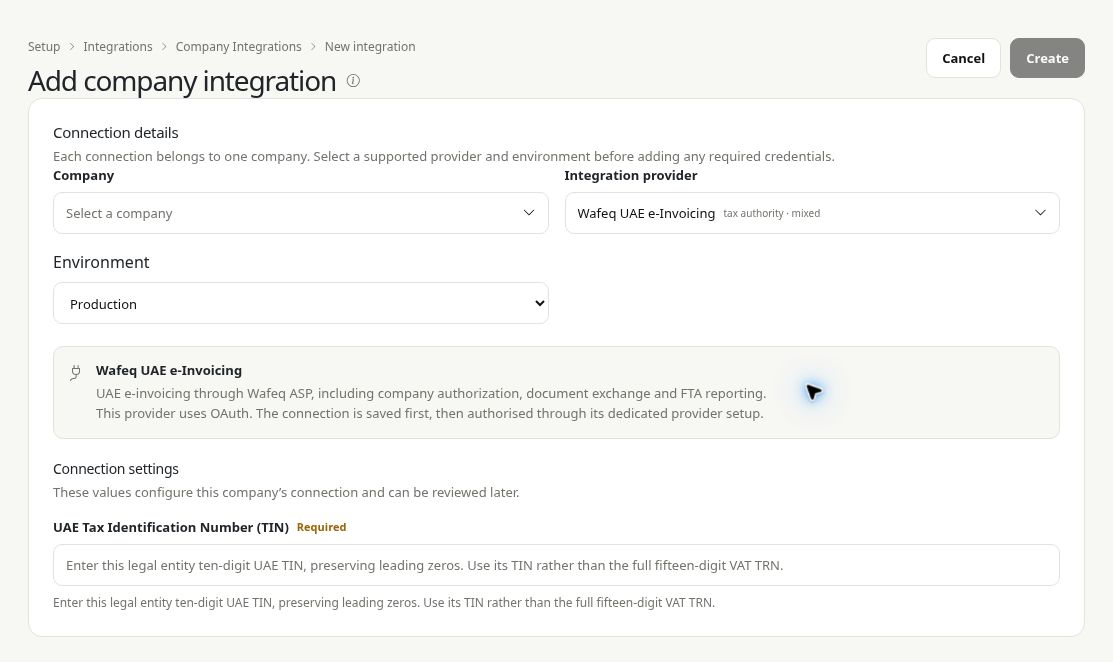
- Open Setup → Integrations → Company Integrations and select Add integration.
- Select the Company and choose Wafeq UAE e-Invoicing as the Integration provider.
- Select Sandbox for testing or Production for live use.
- Enter the company’s ten-digit UAE Tax Identification Number (TIN), including any leading zeros. The form expects the TIN. If you have the full fifteen-digit VAT TRN, confirm the company’s TIN before continuing.
- Select Create.
Authorize and verify the connection
- Open the saved integration and select Connect to Wafeq. If you’re reauthorizing a connection and the app shows Reconnect Wafeq, select that action.
- Follow the prompts in Wafeq to authorize the company, then return to Raizzon One.
- Check that the connection status is Connected. If the status is still unclear, refresh the saved record before attempting authorization again.
- If Enable integration is available, select it when the company is ready to use the connection.
If you cannot open Wafeq authorization, check that the company’s ten-digit TIN is saved. If the problem continues, contact Raizzon One support.