
Use a purchase order to record what you’re ordering from a vendor. Before starting, check that you’re working in the location making the purchase.
Create the draft
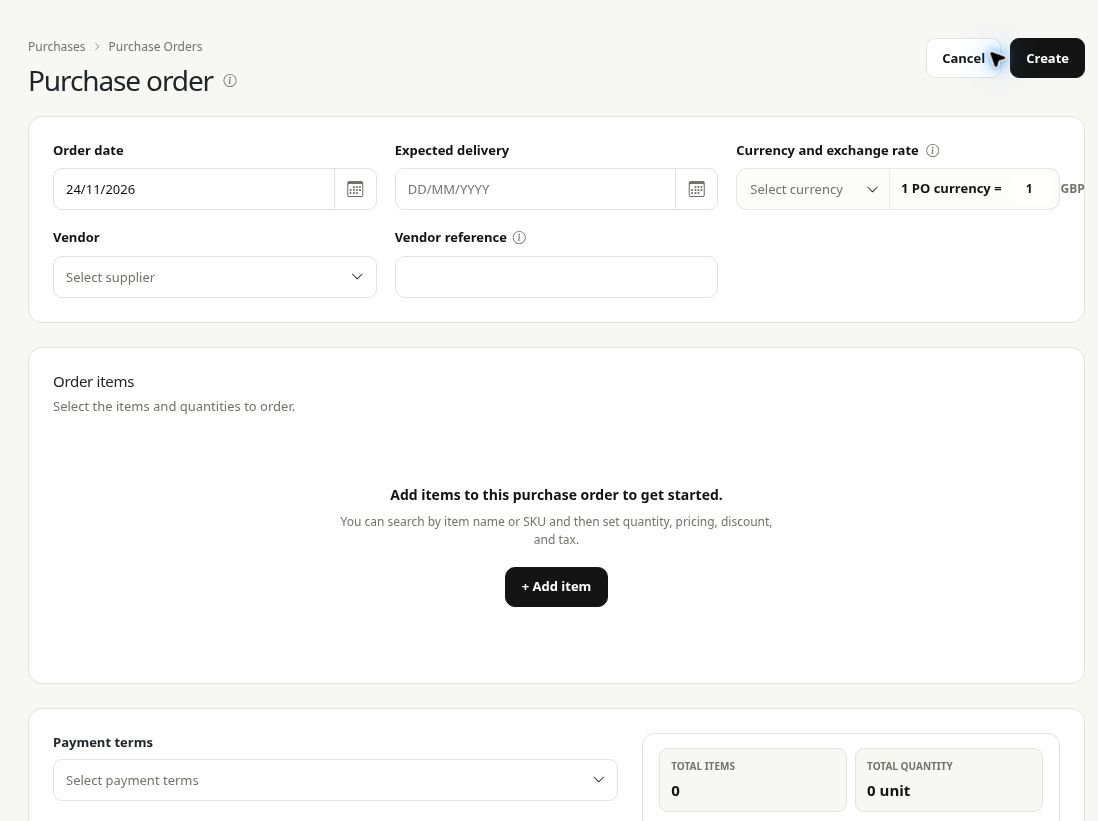
- Open Purchases → Purchase Orders and select Add purchase order.
- Check the Order date and enter the Expected delivery date if known.
- Choose the Vendor. If the vendor is missing, see Add a supplier.
- Select Add item to add what you’re ordering. Check the quantities, unit prices, order currency and total. If the vendor supplied a quotation or other reference, enter it in Vendor reference.
- Select Create to save the draft.
Approve and send the purchase order
Open the saved draft and select Request approval if that action is shown. Follow the prompt and check the order status after the request has been reviewed. If your role has approval access and the app shows Approve purchase order, review the order before approving it.
Use Send digital purchase order when available to send the order to the vendor.
Record the vendor’s acknowledgement
Once the vendor confirms they received and accepted the order, open the purchase order and use the vendor acknowledgement action. Select Confirm acknowledgement in the dialog. The order moves to Awaiting receipt. Record the goods receipt separately when the items arrive.