
Use a Stock Issue to record stock taken from your current location, such as materials issued to an employee for a work order. Use a Stock Return to put previously issued stock back against its original issue.
Issue stock
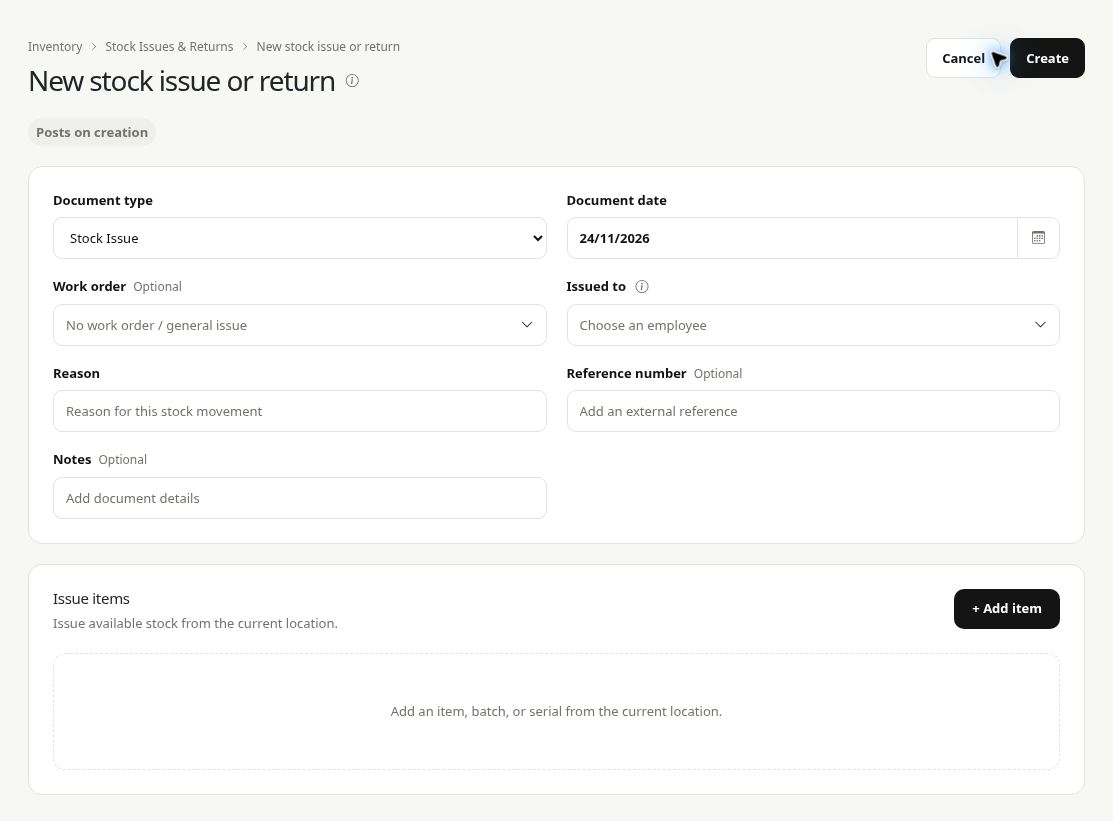
- Open Inventory → Stock Issues & Returns and select Add issue or return.
- Set Document type to Stock Issue and check the Document date.
- Select the Work order if the materials are for a specific job. For a general issue, leave No work order / general issue selected.
- Choose the employee in Issued to and enter the Reason for the issue. Add a reference or notes if needed.
- Select Add item. Choose the item, batch or serial from the current location and enter the actual quantity issued.
- Review the details before selecting Create. If the form shows Posts on creation, this action posts the stock movement immediately.
Return issued stock
- From Stock Issues & Returns, select Add issue or return and set Document type to Stock Return.
- Select the original stock issue. If it was linked to a work order, the return uses that same work order.
- Check that the return date is on or after the original issue date. Add the original issue lines you’re returning and enter the quantities actually returned.
- Enter the reason, review the return and select Create.
Open the saved document and check that it is Posted before treating the stock movement as complete.