
Use Supplier Payments to record money you have already paid to a supplier. The bill’s outstanding balance changes when the payment allocation is posted.
Create the payment
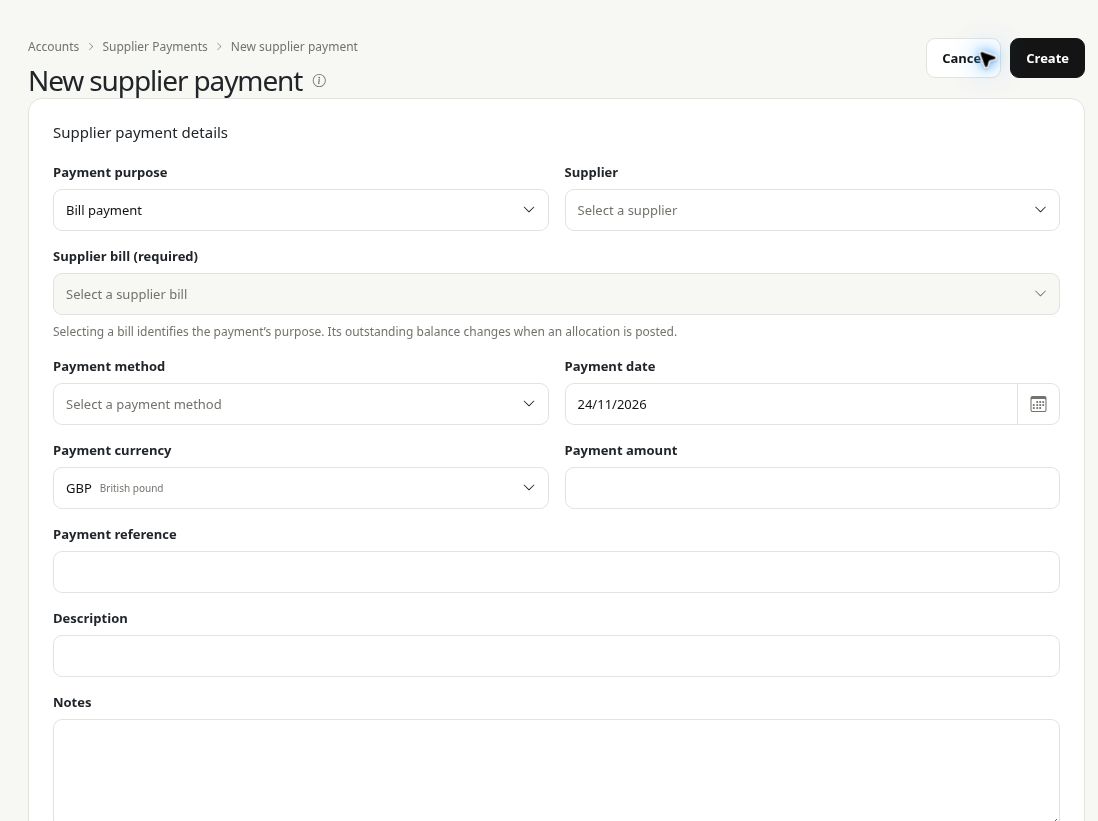
- Open Accounts → Advances & Settlements → Supplier Payments and select New supplier payment.
- Choose Bill payment as the Payment purpose, then select the Supplier and Supplier bill. If you need to enter the invoice first, see Record a supplier bill.
- Select the Payment method and check the Payment date, Payment currency and Payment amount. If the form shows a bank account or cashbook field, select the account used for the payment.
- Enter the Payment reference if your payment method requires it, then select Create.
Post the payment and settle the bill
- Open the saved payment and select Post payment when available. Follow any approval prompt and check the payment status after the request has been reviewed.
- If the confirmation offers Post and settle bill, follow the prompts and review any allocation the app opens.
- If the posted payment still has an unallocated amount, select Allocate payment when available. Choose the bill, enter the amount to apply and review the allocation. Select Post allocation when available.
- Return to the supplier bill and check its outstanding balance. If you paid only part of the bill, check that the remaining balance matches what you still owe.