
Use a supplier bill to record an invoice you received from a vendor.
Create the bill draft
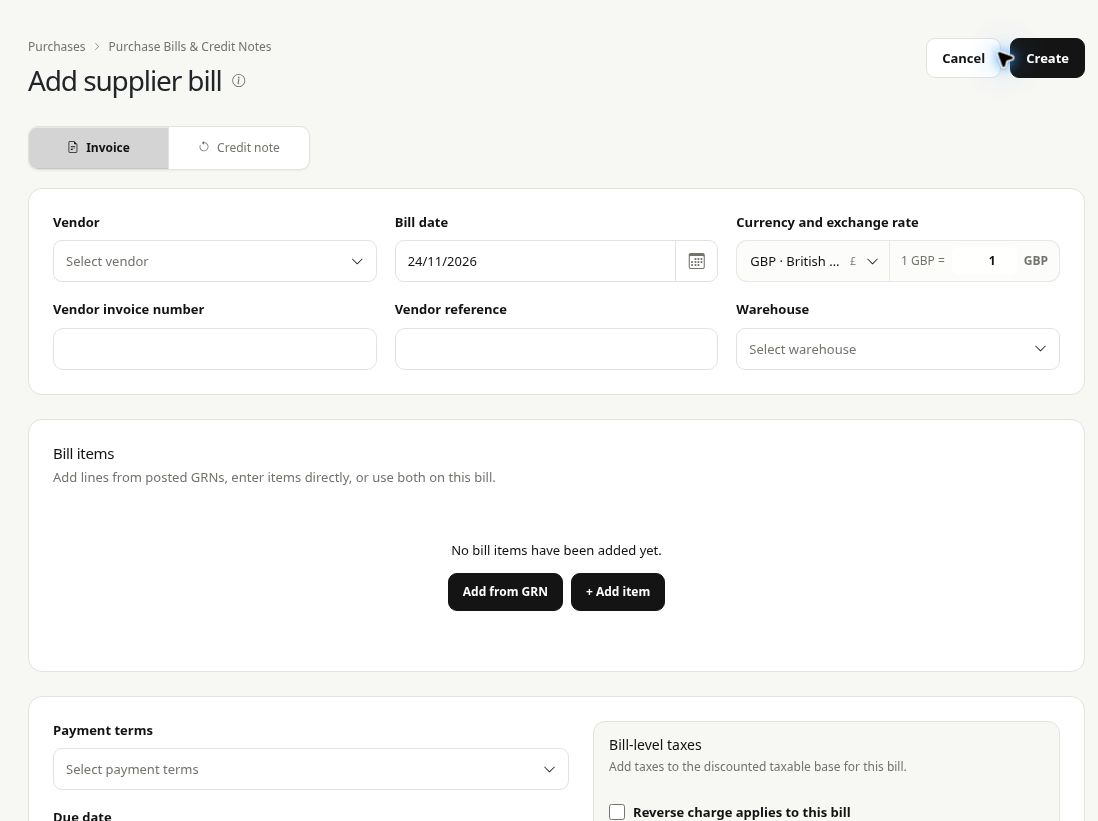
- Open Purchases → Purchase Bills & Credit Notes and select Add purchase bill.
- Select Invoice, choose the Vendor and check the Bill date. Enter the Vendor invoice number and any Vendor reference shown on the supplier’s invoice.
- Check the currency and exchange rate. Select the Warehouse if it applies to the bill.
- Under Bill items, choose Add from GRN to bill quantities from a posted goods receipt note, or Add item to enter a line directly. You can use both on the same bill. If you need to post the goods receipt first, see Record a goods receipt.
- Compare the quantities, prices, discounts, taxes and total with the supplier’s invoice. Review the Payment terms and Due date.
- Select Create to save the draft.
Review and post the bill
Open the saved draft and review it against the supplier’s invoice. If Request approval is shown, submit the bill for review and check its status after the request has been reviewed. If you can post directly, review the Post supplier bill prompt and select Post bill.
Check that the bill status is Posted. Record any payment to the supplier separately.