
Use a stock count to compare what you physically find with the stock recorded in Raizzon One. Check that you’re working in the location you intend to count.
Create the count
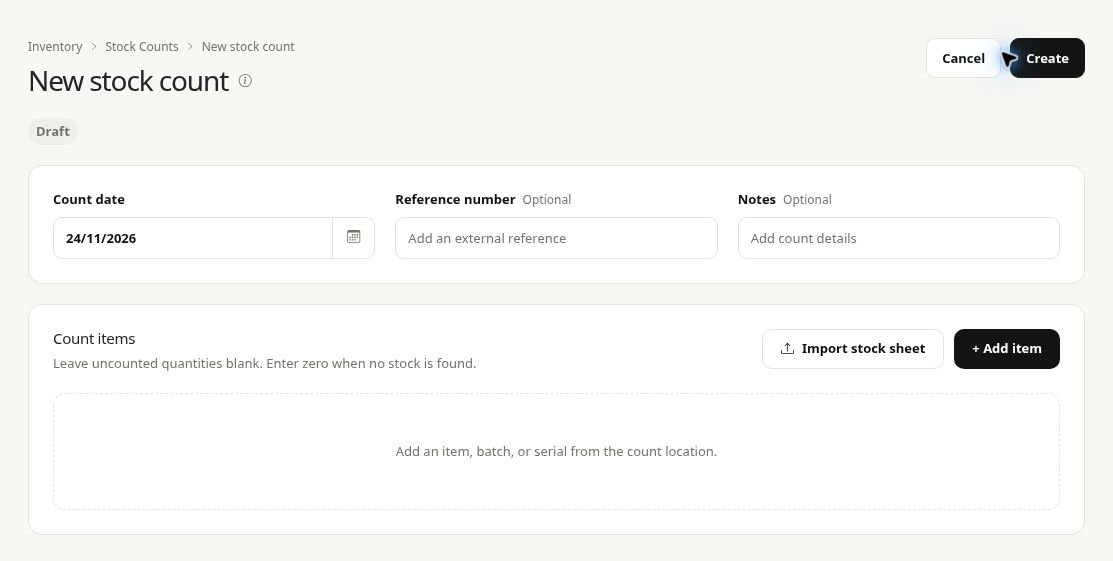
- Open Inventory → Stock Counts & Reconciliation and select Add stock count.
- Check the Count date. Enter a Reference number or Notes if they help identify the count.
- Select Add item to add an item, batch or serial from the count location. If you have a stock sheet, use Import stock sheet and follow the prompts.
- Enter the quantity you physically counted. Leave the quantity blank if you haven’t counted it yet. Enter 0 if you counted and found none.
- Select Create to save the draft.
Review and approve the count
Complete all count lines and explain any variances before submitting. Select Submit for approval if review is required, or Approve count if that action is available. Approval prepares the count for posting.
Post the adjustments
Open the approved count and select Post adjustments when available. If the app shows Request posting, submit the request and check the count after it has been reviewed.
Posting applies the approved variances to stock. Check that the count status is Posted before treating the adjustments as applied.