
Use this guide when a customer orders an item your team needs to make. The sales order holds the customer’s requirements, and the work orders track the jobs your production team will carry out.
Prepare and confirm the sale
- Open Sales & Orders → Sales / POS and create or open the sales order.
- For the made-to-order item, use Choose options when shown. Complete the configuration the item requires and save the order.
- Review the saved item configuration before selecting Confirm order. If the app says a required workflow is missing, reopen the item configuration, review the workflow and save the configuration before trying again.
- If confirmation requires approval, check the order after the request has been reviewed.
For the full entry workflow, see Create a sales order.
Check when work orders are generated
The operational policy saved on the order controls when generation can happen.
- On order confirmation. Eligible work orders can be created when the order is confirmed.
- On invoice issuance. Work orders are generated for eligible quantities when the invoice is issued. If you invoice part of an order, check which quantities that invoice covers. See Create an invoice from a sales order.
Find the production jobs
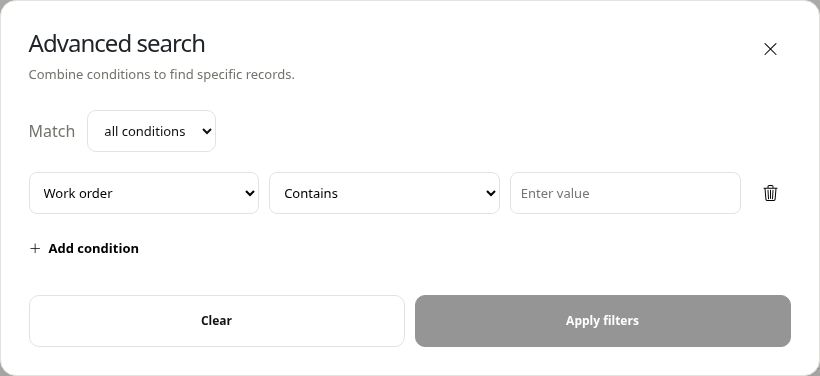
Open the saved order and look for Work orders. You can also go to Production → Work Orders and use Advanced search to filter by Sales order.
On the sales list, check the Work orders column. Not generated means none of the expected work orders have been created. Partially generated means some are still outstanding. Fully generated means all expected work orders have been created.
If an expected work order is missing
Check the order’s confirmation status, any pending approval and, where the policy requires it, whether the relevant invoice has been issued. Then check the working location and clear any filters that could hide the job. If the Work orders section is missing, ask your workspace administrator to check your access to Production → Work Orders.