
Use the Contact tab to keep emails, phone numbers and other contact methods together on a People record. For example, a supplier can have a billing email and a separate office phone number.
Open the contact list
- Open People and find the person or organisation. See Find a person or organisation.
- Open the record and go to Basic details → Contact.
- Review the existing methods under Contact & communication. If the email address or phone number has changed, edit the existing entry so the team can find the current details.
- Select Edit, then Add contact to add a new method.
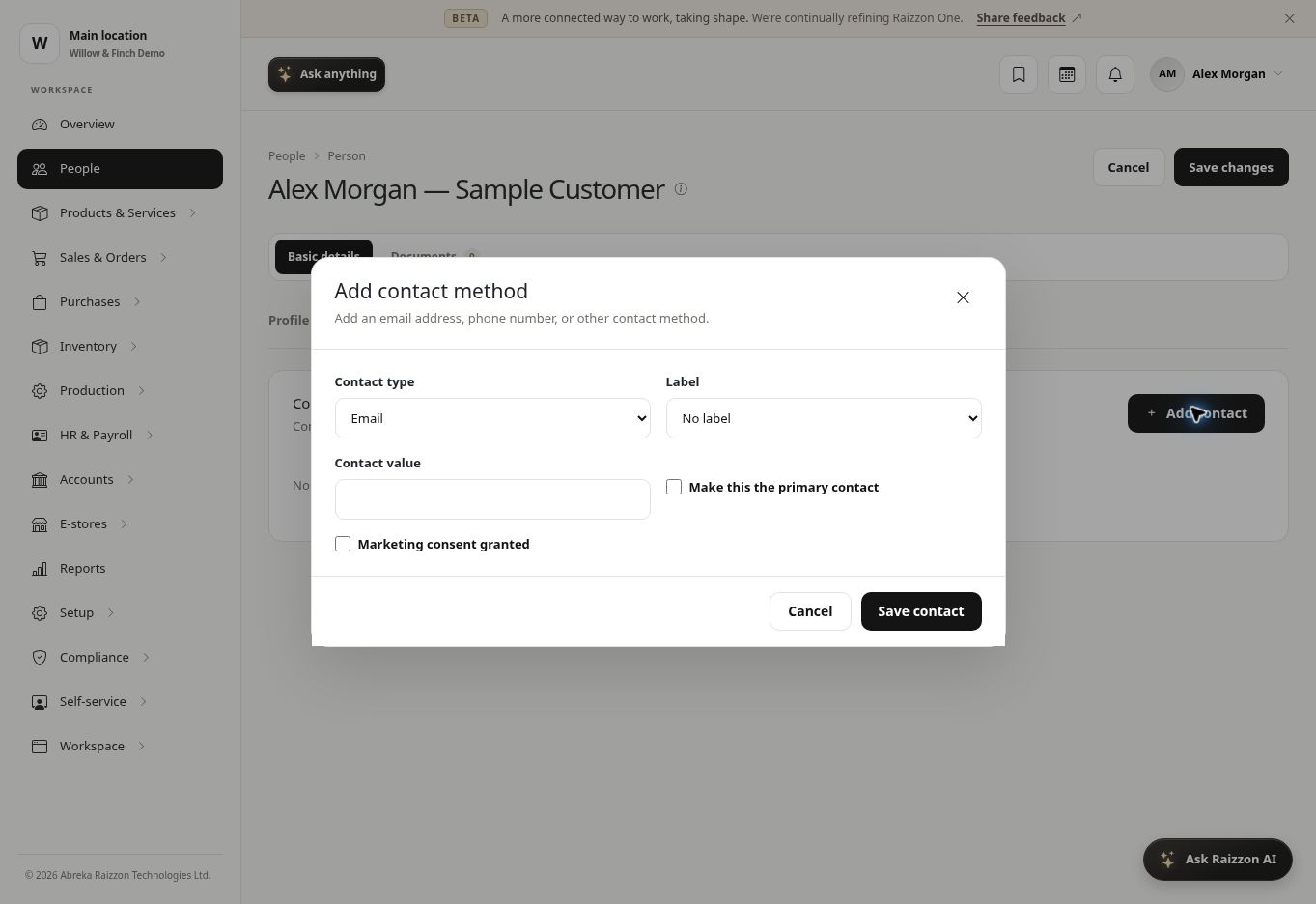
Enter the contact details
| Field | What to enter |
|---|---|
| Contact type | Choose Email, Mobile, Phone, WhatsApp, Website or Other, depending on how the contact detail is used. |
| Label | Choose a label such as Billing, Office or Personal to help colleagues tell entries apart. You can also choose No label. |
| Contact value | Enter the email address, number, website or other value for the selected type. Check the dialling code if the form shows one. |
| Make this the primary contact | Select this if the entry should be marked as primary. After saving, check the Primary column. |
| Marketing consent granted | Select this only if marketing consent was given for this contact method. |
For example, to record where a supplier receives billing correspondence, choose Email, set Label to Billing and enter the address under Contact value.
Save and verify the contact method
- Select Save contact. This saves the contact method directly.
- Check the updated list for the correct type, label and value. If you marked the entry as primary, verify that the Primary column shows Yes.
- To correct a saved entry, open it for editing from the contact list, make the correction and select Save contact again.
If Add contact is missing, check that the People record is in edit mode. If Edit is also missing, ask your workspace administrator to check your access.