
Use Occasions to keep track of dates associated with a People record. You can record a birthday, an anniversary or another date with a label of your choice.
Open the occasion form
- Open People and find the person or organisation. See Find a person or organisation if you need help with the search.
- Open the record and go to Basic details → Occasions.
- Check whether the date is already recorded. If it is, edit the existing entry.
- Select Edit, then Add occasion.
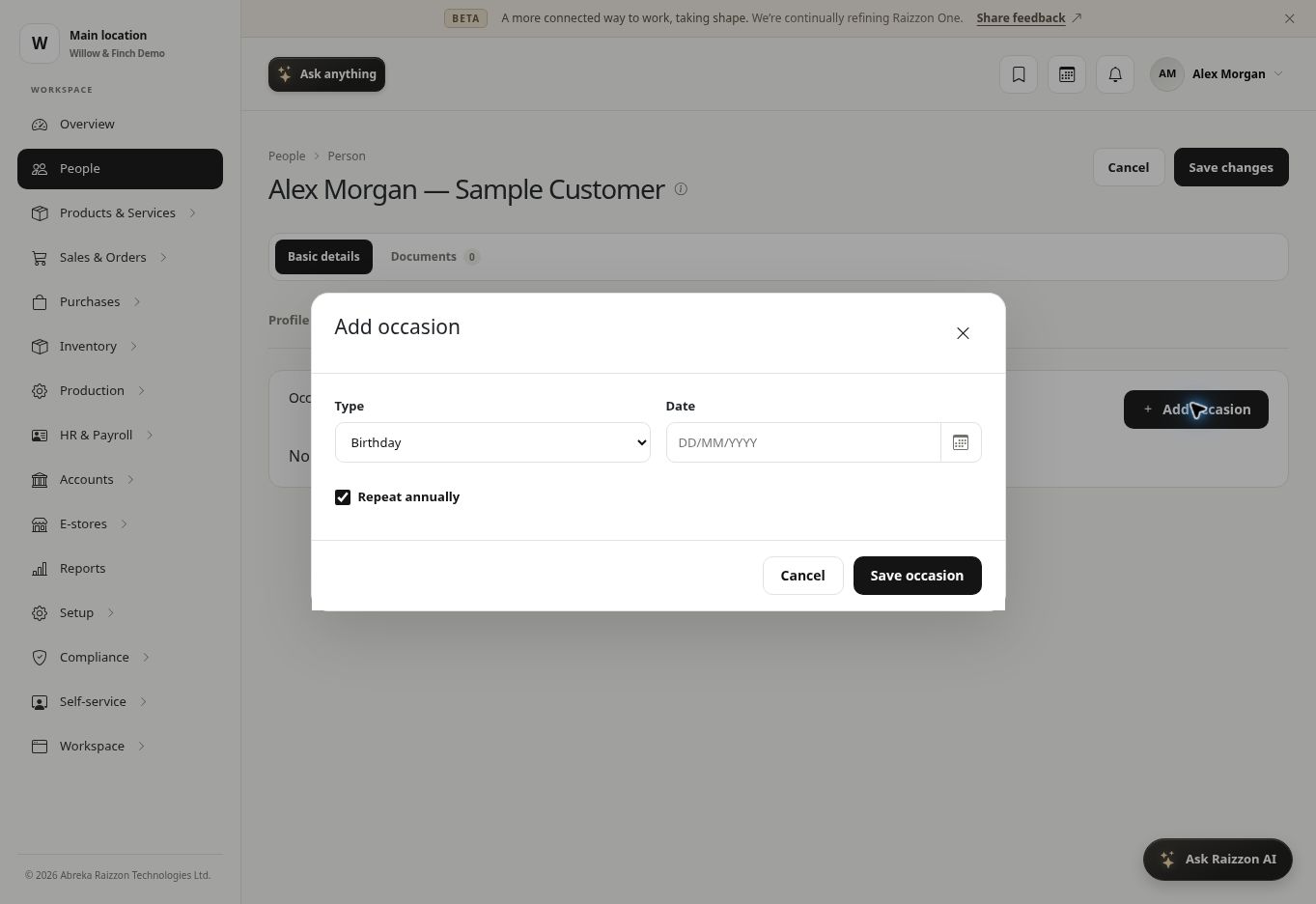
Enter and save the occasion
| Field | What to enter |
|---|---|
| Type | Choose Birthday, Anniversary or Other. |
| Label | If you select Other, enter a short name, such as First order anniversary. |
| Date | Enter the date in the format shown in the field, or select Choose date to use the calendar. |
| Repeat annually | Leave this selected for a date that repeats each year. Clear it for a one-off occasion. |
Select Save occasion and check that the entry appears in Occasions with the expected date and repeat setting. This button saves the occasion directly.
Correct an existing occasion
In edit mode, open the existing entry and update its details. If Reason for change appears, explain the correction before submitting it. If the app says the change was submitted for approval, check the entry again after the request has been reviewed.
If Add occasion is missing, check that the record is in edit mode. If you can view the record but can’t edit it, ask your workspace administrator to check your access.