
Use Relationships to link two existing People records. For example, link an individual to a supplier organisation so your team can see who acts as its contact.
Find both records
- Open People and check that the individual and organisation already have records. If you need to create one, see Add a person or organisation.
- Open the record you want to start from and go to Basic details → Relationships.
- Check the existing entries. This tab shows relationships recorded from the current record and from other People records, so check both before adding a link.
Add the relationship
- Select Edit, then Add relationship.
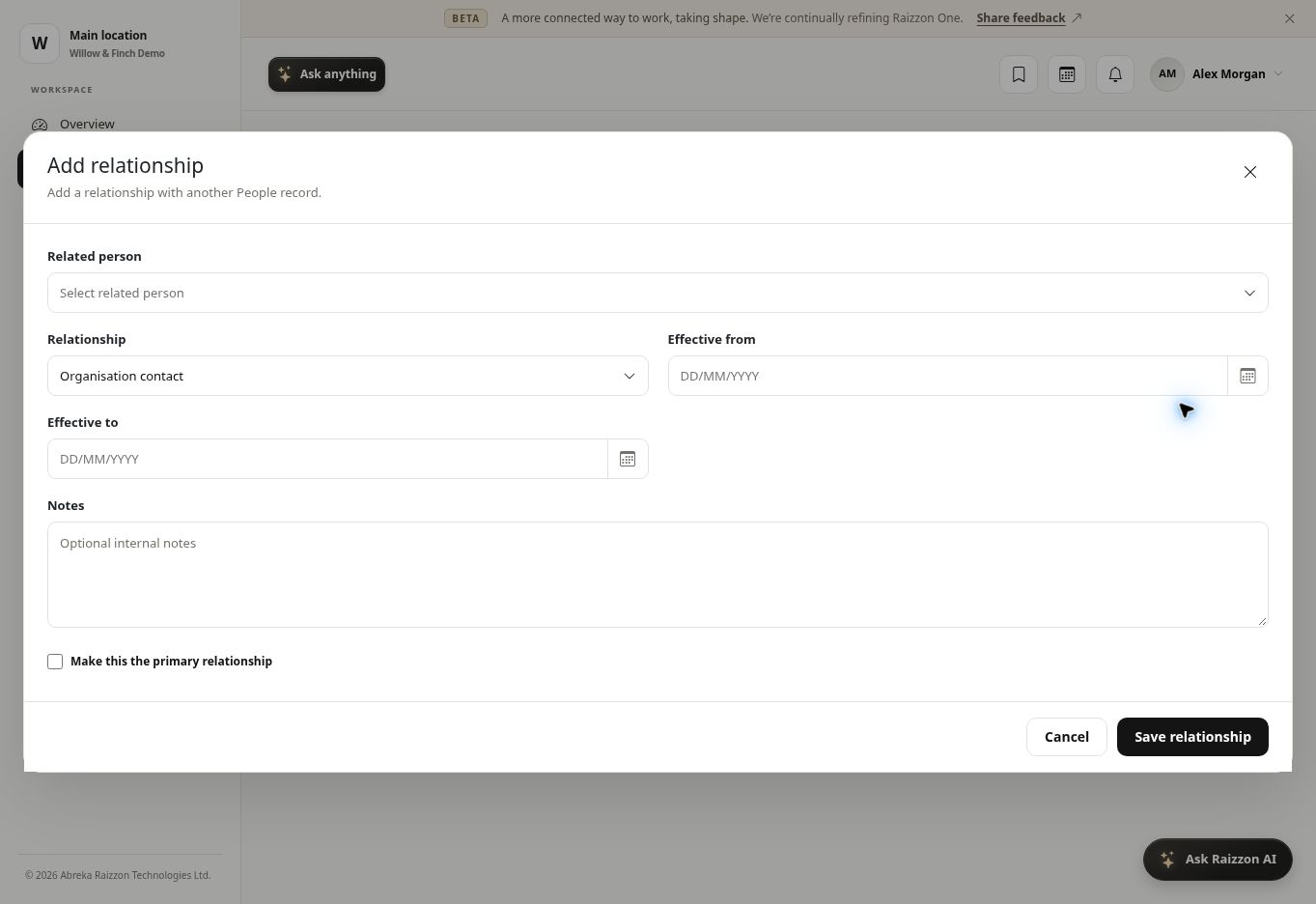
- Under Related person, select the other People record. Check the display name before continuing, especially if several records have similar names.
- Under Relationship, select the type that describes the link, such as Organisation contact.
- Enter Effective from or Effective to if the relationship starts or ends on a specific date. Use Notes for context, such as which office the contact represents.
- Select Make this the primary relationship if the link should be marked as primary.
- Select Save relationship. This saves the link directly. Check that the related record, type and dates are correct in the list.
If Add relationship is missing, check that the People record is in edit mode. If Edit is also missing, ask your workspace administrator to check your access.