
Add a company when you need to manage another legal business in your workspace. Before creating one, check Organise companies and locations to decide whether you need a company or a new location under an existing one.
Open the New company form
- In the left sidebar, open Setup → Companies and Locations.
- Check the list for the legal company name to avoid creating a duplicate.
- Select Add company. If the button is missing, ask your workspace administrator to check your access to create companies.
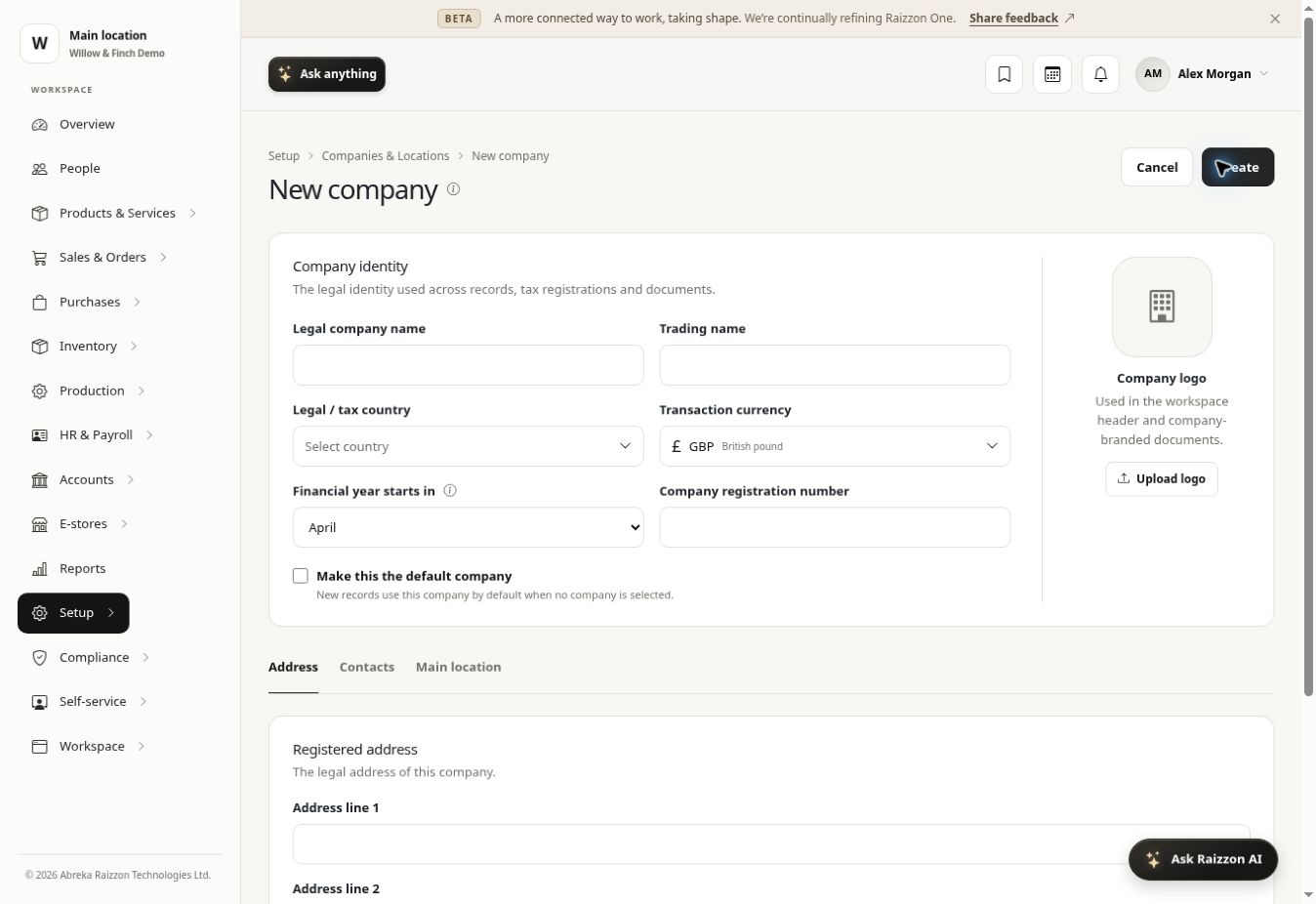
Enter the company identity
| Field | What to enter |
|---|---|
| Legal company name | Enter the name as it appears on the company’s registration documents. |
| Trading name | Enter the name customers know the business by, if it uses one. |
| Legal / tax country | Choose the country for this legal company. |
| Transaction currency | Check the currency shown and select the currency the company uses for transactions, such as GBP. |
| Financial year starts in | Select the start month for this company, or choose Use General Preferences to use the workspace setting. |
| Company registration number | Enter the company’s registration number if it has one. |
| Make this the default company | Select this if new records should use this company when no company is selected. |
| Company logo | Use Upload logo if you want the company’s logo in the workspace header and on company-branded documents. |
Open Address and enter the company’s registered address. Select the address country first, then choose the province or state and city as applicable. Open Contacts to enter the company’s contact details.
Set up the first operating location
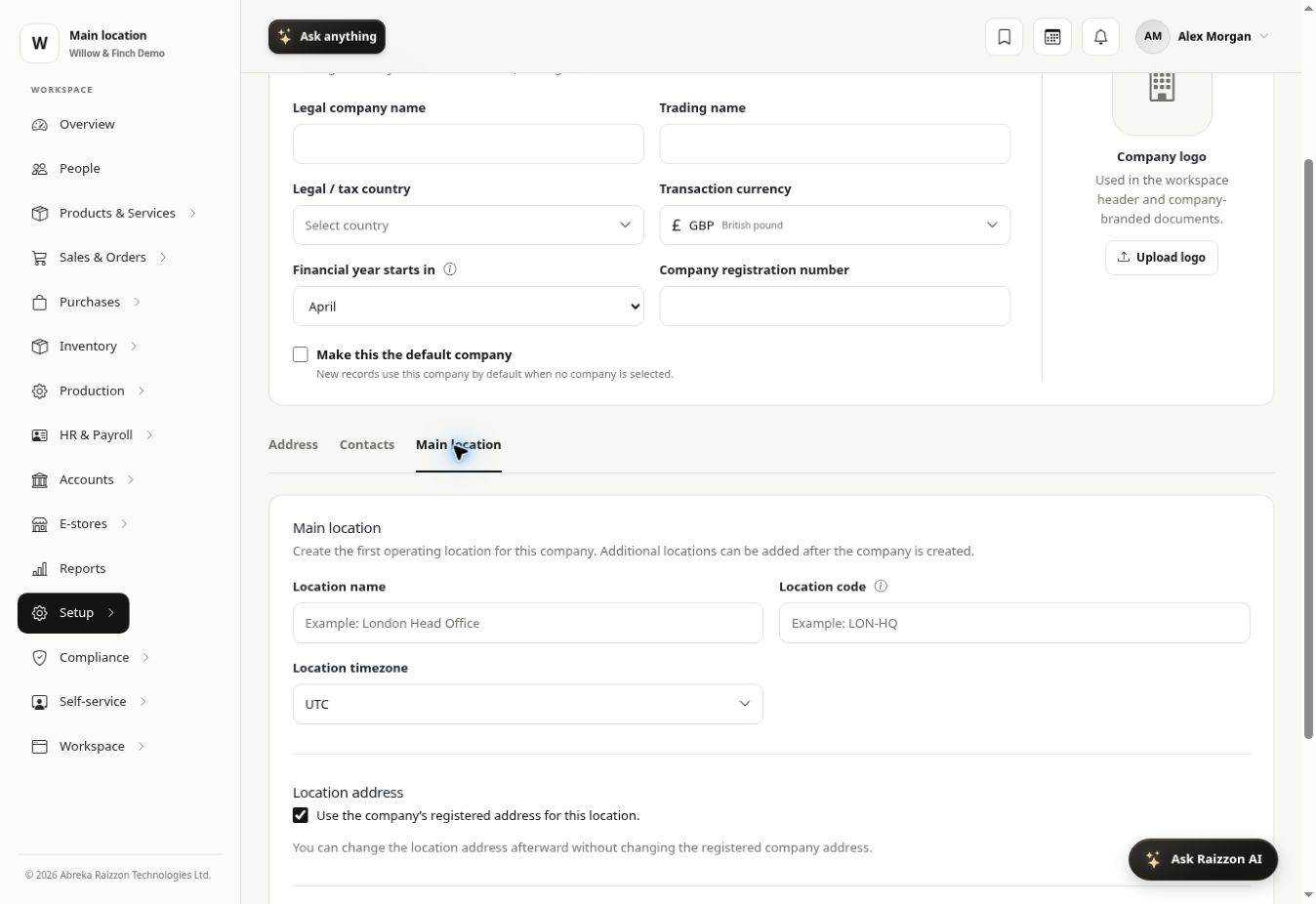
- Open the Main location tab.
- Enter the Location name and Location code. For example, use
London Head OfficeandLON-HQ. - Check Location timezone and select the timezone for that site.
- Under Location address, leave Use the company’s registered address for this location selected if the site shares that address. Clear it and enter the site’s address if it operates somewhere else.
- Under Operational capabilities, select every function the site performs. For example, select Retail / POS and Workshop if the site both sells to customers and carries out production work.
Create and verify the company
- Review Company identity, Address, Contacts and Main location.
- Select Create.
- Open the company record and check that Company details shows the expected legal information and Locations lists the first operating site.
- Use the Locations tab to add further sites for the company as needed.