
Add a location when an existing company opens another operating site. For example, if your company already has a shop and opens a warehouse, add the warehouse under the same company. See Organise companies and locations if you’re deciding where a new site belongs.
Open the New location form
- In the sidebar, open Setup → Companies and Locations.
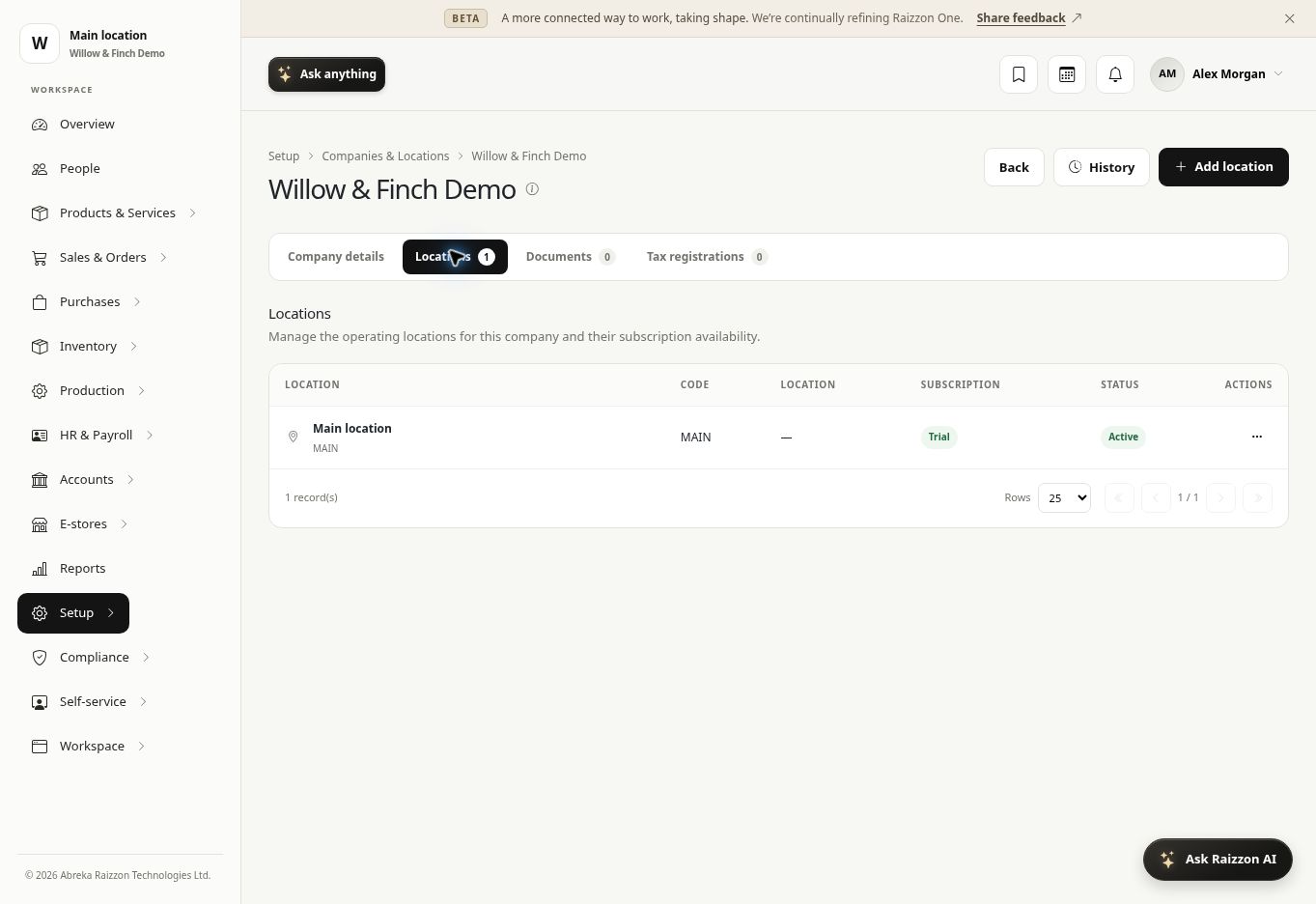
- Select the company that operates the site.
- Open Locations and check whether the site already has a record. Compare the names and codes.
- Select Add location. If the button is missing, ask your workspace administrator to check your access to create locations.
Enter the location details
| Field | What to enter |
|---|---|
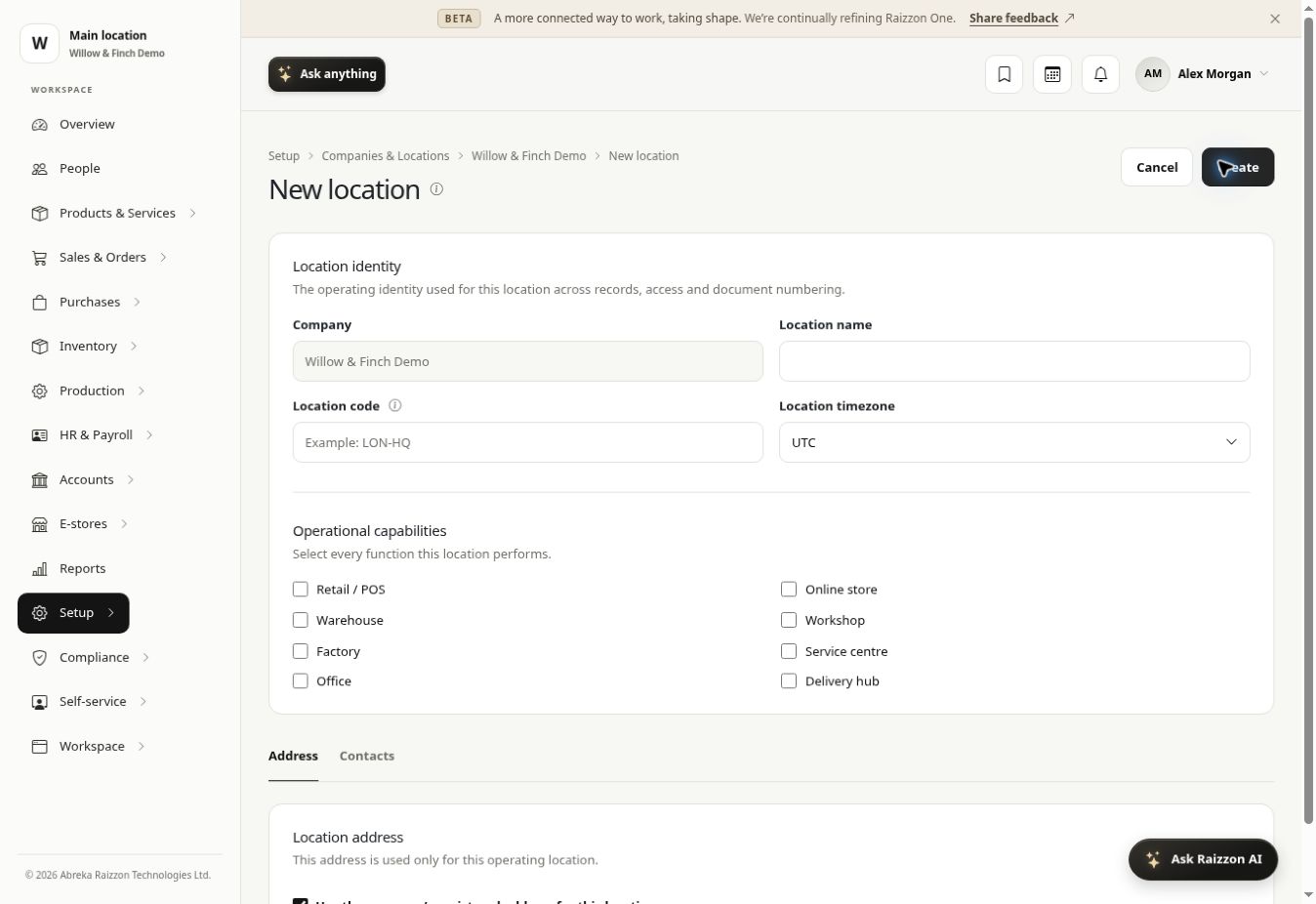
| Company | Check that the form is under the correct company. If you opened the wrong company, cancel and start from the correct company’s Locations tab. |
| Location name | Use a name your team will recognise, such as Bristol Warehouse. |
| Location code | Enter a short code that distinguishes this site from your other locations, such as BRS-WH. Select About location codes for guidance in the form. |
| Location timezone | Select the timezone for the site. For a warehouse in Bristol, choose Europe/London. |
| Operational capabilities | Select at least one capability. Choose every function the site performs. For example, choose Warehouse for a stock storage site, or Retail / POS and Workshop for a shop that also carries out production work. |
Set the address and contacts
- Open Address. If the site uses the company’s registered address, leave Use the company’s registered address for this location selected.
- If the site is at a different address, clear the checkbox. Enter Address line 1 and select the country and city. Complete the other address fields as applicable.
- Open Contacts to add the site’s contact details if needed. For example, enter the warehouse contact so colleagues know whom to contact about deliveries.
Create and verify the location
- Review the company, location name, code, timezone, capabilities and address.
- Select Create.
- Return to the company’s Locations tab and check that the new site appears with the expected name and code. Check its Status and Subscription in their respective columns.
- Open the new location to verify its saved details.
If the location doesn’t save
- If you see Incomplete location form, complete the fields listed in the message. Check that you selected at least one operational capability.
- If Raizzon One says the company has no active registered address, open the company record and check its Registered address. If the operating site has its own address, clear the registered-address checkbox and enter the site’s address before trying again.