
Use Label Designs to set up what prints on a label. The design belongs to an operational module, such as Work Orders or Items. For example, a work-order bag label can show a job reference for staff to read and a code they can scan.
Open the designer
- Open Setup → Documents, Printing & Labels → Label Designs.
- Check the existing designs for the module. Compare the name, Size, Printer DPI and Status to see whether a suitable design already exists.
- Select Add label design to open New label design.
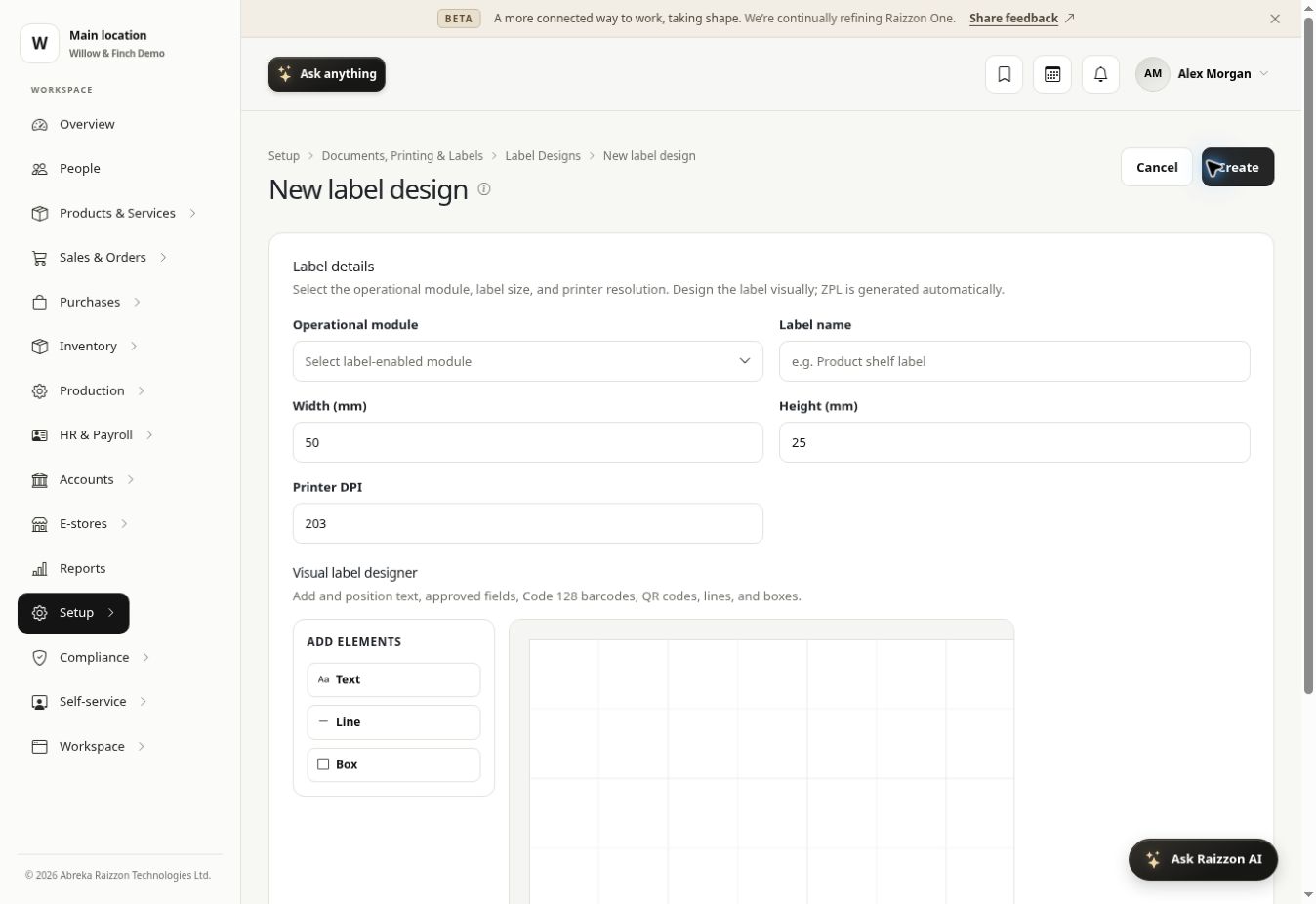
Match the design to your label stock
| Field | What to enter |
|---|---|
| Operational module | Select the module where staff will print the label. The available record fields depend on this choice. |
| Label name | Enter a name that identifies the purpose and size, such as Work order bag label – 80 × 50 mm. |
| Width (mm) and Height (mm) | Enter the dimensions of one label. For an 80 × 50 mm label, enter 80 for width and 50 for height. |
| Printer DPI | Enter the resolution specified for your printer. The new form starts at 203. Check your printer before using that value. |
Build the label
- In Visual label designer, add a Text element for wording that should appear on every label, such as
WORK ORDER. - Add a field from the selected module for information that should come from each record. For example, use an available work-order reference field so the value changes when staff print a different job.
- Use a Code 128 barcode or QR code for a field when the designer offers that option. Add a Line or Box if it helps separate parts of the label.
- Position the elements in the designer. Leave space for longer record values and check that text and codes fit within the label edges. Raizzon One generates the ZPL from the visual layout.
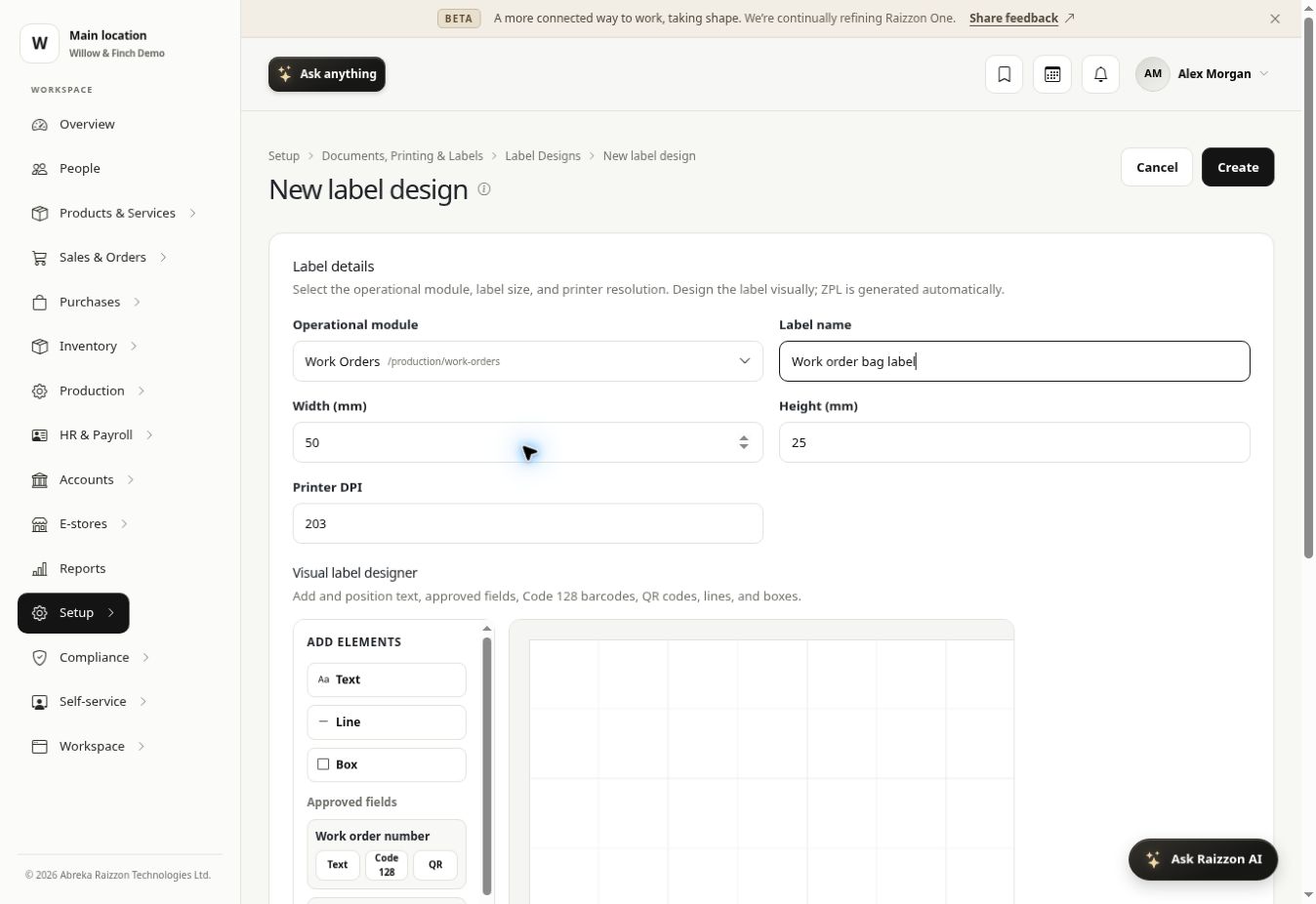
Save and check a sample
- Leave Label design is active selected if staff should be able to use it for printing.
- Select Create and check the saved design’s module, size and status in Label Designs.
- Open a sample record in that module and use its label printing action. Select the new design and choose Preview PDF to check the actual record values and layout.
- Print one sample before running a batch. If the design includes a barcode or QR code, scan the sample to check that it works for your workflow.
For a Work Orders example, see Print a label from a work-order sheet.
If the design is missing from the print dialog, check that it is active and assigned to the same operational module you’re printing from.