
Add a workspace user when someone needs to sign in to Raizzon One. Decide which locations they need and what they should be able to do before creating the account. See Set up a user role if you need to configure a role first.
Open the New user form
- Open Setup → Security & Access → Users.
- Check whether the person’s email address already appears in the list.
- Select Add user to open New user.
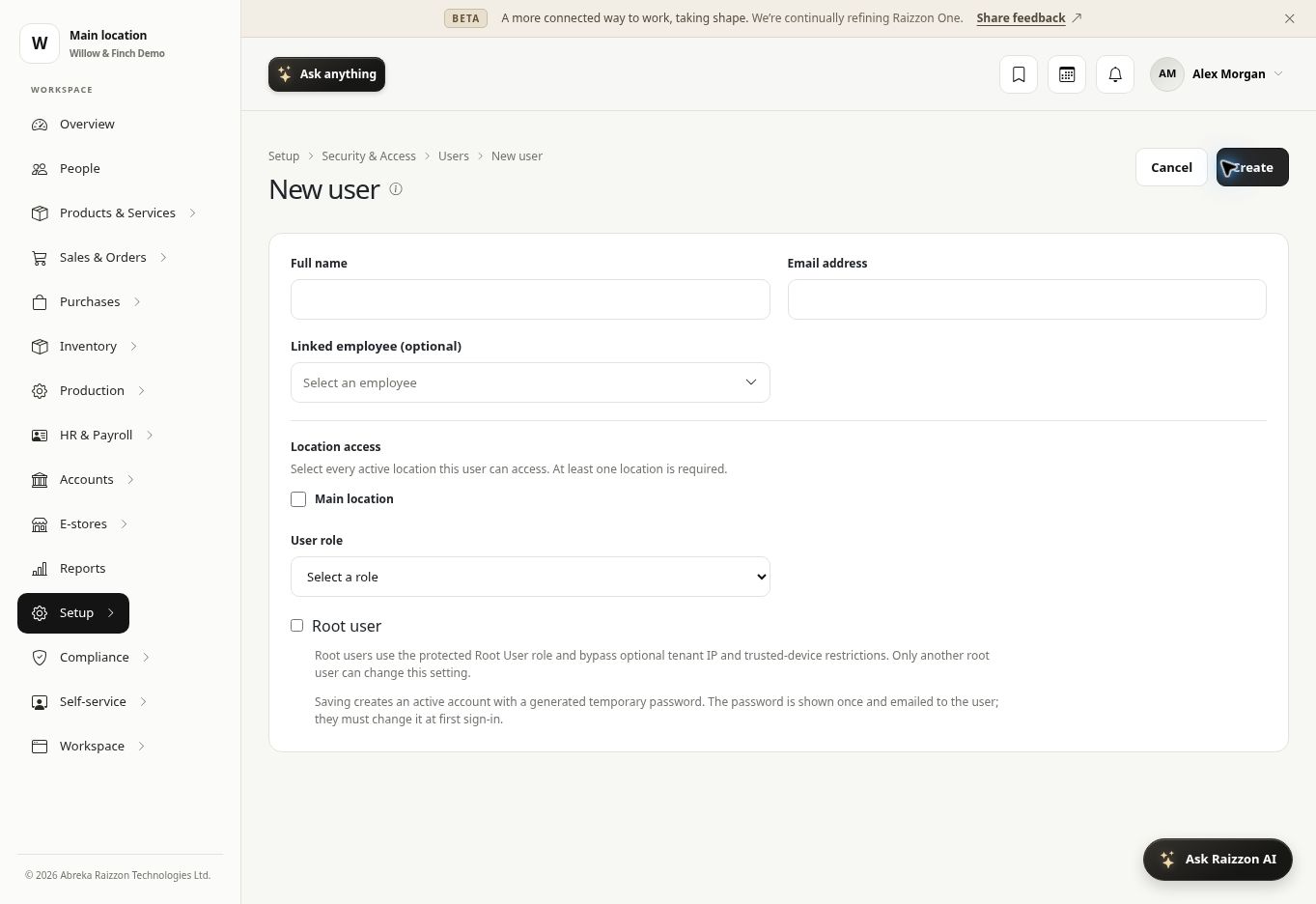
Enter the user’s details
- Enter the person’s Full name and Email address. Check the email carefully because Raizzon One sends the temporary password to this address.
- Use Linked employee (optional) if the person already has an employee record you want to associate with this account.
- Under Location access, select each active location the person needs. At least one location is required. For example, select the Bristol warehouse for a stock controller who works only at that site.
- Under User role, select the role that matches their responsibilities. The role controls the actions they can take. Location access controls which sites they can work in.
- Leave Root user cleared for an ordinary staff account. Root users use the protected Root User role and bypass optional tenant IP and trusted-device restrictions.
Create the account and check access
- Review the email address, role and locations, then select Create. This creates an active account and generates a temporary password.
- Raizzon One shows the temporary password once and emails it to the user. The user must change it at first sign-in.
- Find the new account in Users and verify its role and location access. After the user signs in, have them confirm they can open the locations and modules they need.
If Add user is missing, ask your workspace administrator to check your access to create users. If the location you need isn’t offered, check that the location is active.