
Use Document Numbering to control how an operational module numbers the documents it issues. Before adding a rule, decide who should share the sequence and when it should restart.
Check the existing rules
- Open Setup → Documents, Printing & Labels → Document Numbering.
- Look for the module you want to configure. The list shows each rule’s Scope, Reset period, Number format and Status.
- Open an existing rule to review it. To set up a new rule, select Add numbering rule.
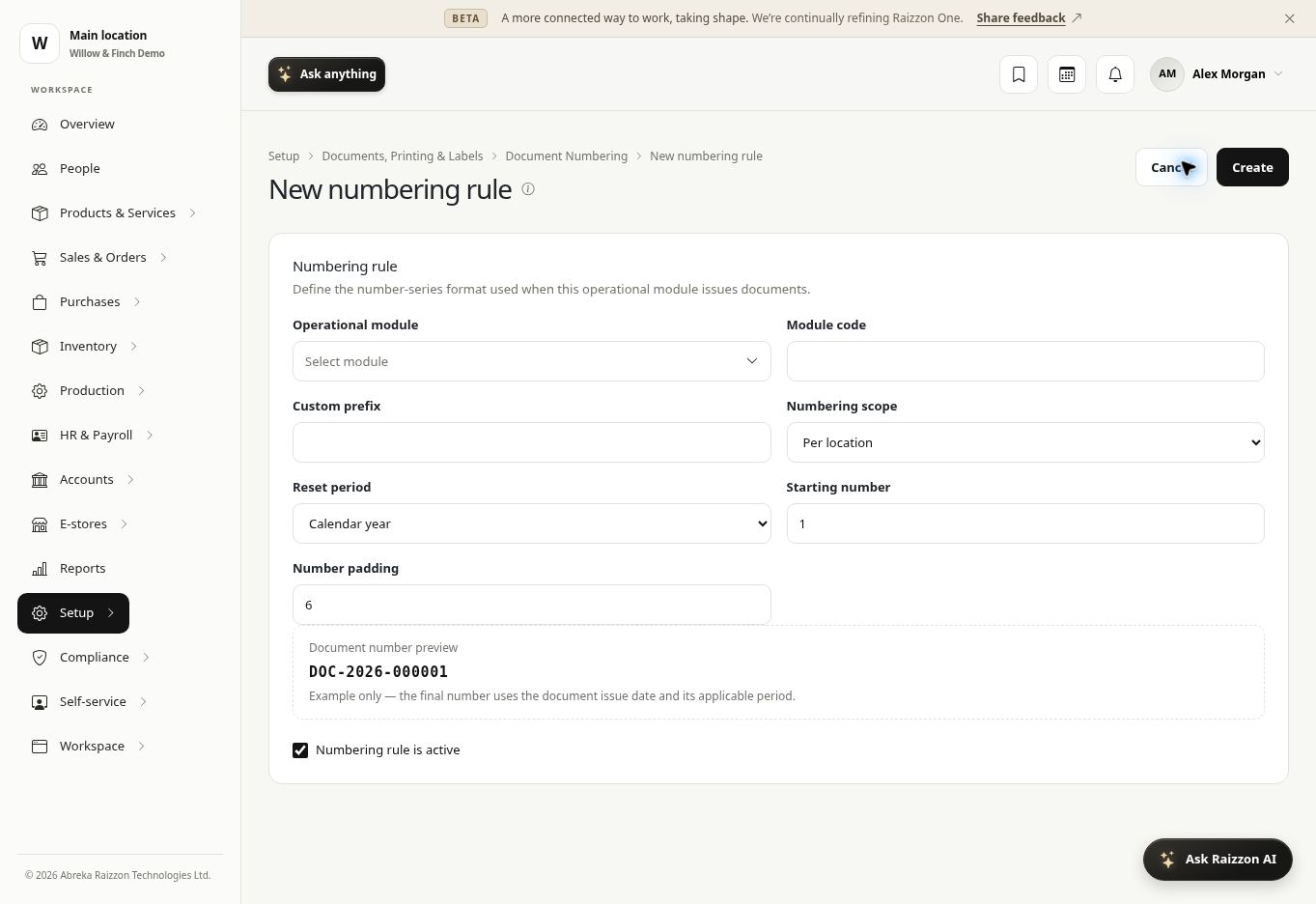
Set the numbering rule
| Field | What to choose |
|---|---|
| Operational module | Select the module whose documents should use this rule. Check the module before continuing. |
| Module code | Check the code shown after selecting the module. |
| Custom prefix | Enter a prefix if your team needs a recognisable label at the start of the number. Check how it appears in the preview. |
| Numbering scope | Choose Per location for a separate sequence at each site, Per legal entity for a sequence shared by sites under the same company, or Tenant-wide for a sequence shared across the workspace. |
| Reset period | Choose Never for a continuous sequence, Calendar year to restart each calendar year, or Financial year to restart each financial year. |
| Starting number | Enter the first sequence number to use, such as 1. |
| Number padding | Set the minimum digit count for the numeric part. For example, with six digits, 1 appears as 000001. |
| Numbering rule is active | Check the status you want for this rule before creating it. |
For example, if each warehouse should have its own series, choose Per location. If the sites under a company should share a series, choose Per legal entity.
Preview and verify the rule
- Check Document number preview. For example,
DOC-2026-000001shows a prefix, year and six-digit sequence number. - Review the module, scope and reset period together. The preview is an example. The final number uses the document’s issue date and applicable period.
- Select Create, then check the saved entry in Document Numbering.
If Add numbering rule is missing, ask your workspace administrator to check your access to create numbering rules.