
Use Templates in the Message Centre to prepare reusable messages for your workspace. For example, create an email template your team can use when sending a sales order to a customer.
Choose the event, channel and language
- Open Setup → Message Centre → Templates.
- Review the existing templates by Message event, Channel, Locale and Status. Check whether you already have a suitable template for the event, channel and language.
- Select Add template to open New message template.
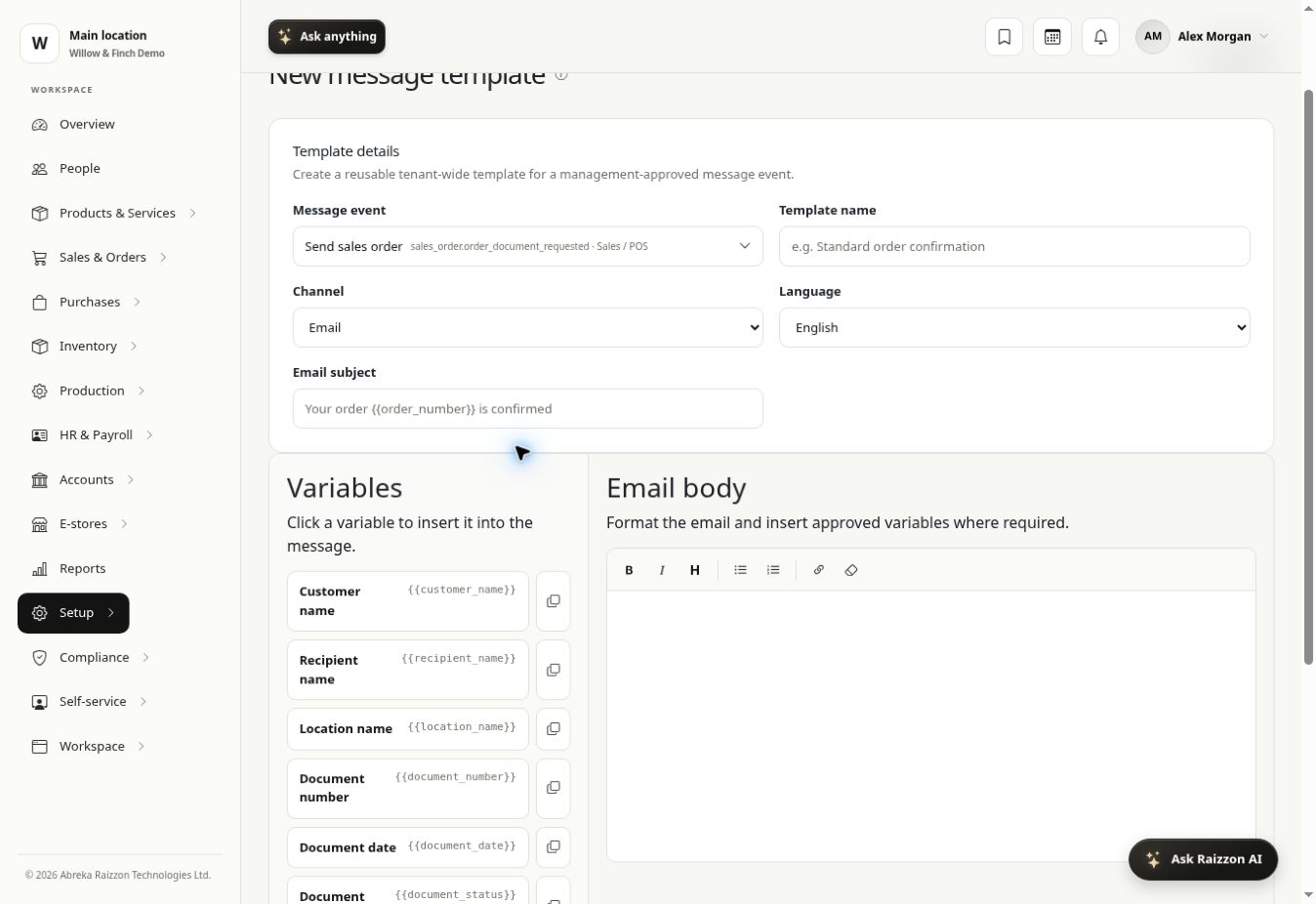
- Choose the Message event first. For this example, select Send sales order. The event determines which channels and variables are available.
- Enter a Template name your team can identify, such as
Sales order confirmation – Email. - Choose the Channel and Language. For this example, select Email and English. Depending on the event, the channel list can also offer SMS, Official WhatsApp or Unofficial WhatsApp.
Write the message
- For Email, enter an Email subject and write the message under Email body. Use the formatting toolbar if you need headings, emphasis or lists.
- Check the Variables panel for the fields available to the chosen event. Use an approved variable where the message needs a value from the record. For example, if the event offers
{{order_number}}, a subject could readYour order {{order_number}} is confirmed. - Read the subject and body as the recipient will see them. Check that each variable belongs to the selected event and that the wording fits the channel.
Save and verify the template
- Review the event, channel, language and wording together.
- Leave Template is active selected if messaging rules should be able to select it. Inactive templates remain saved and are unavailable to messaging rules.
- Select Create and return to Templates. Check the saved row’s event, channel, locale and status.
If you can’t select a channel or variable
Choose the Message event first. Then check the channels and variables listed for that event. If Add template is missing, ask your workspace administrator to check your access to create message templates.