
Use Import defaults in the Message Centre to bring in starter wording for common messages, such as customer welcomes and payment receipts. Review each template you plan to use so its wording matches the event and delivery channel.
Import the starter templates
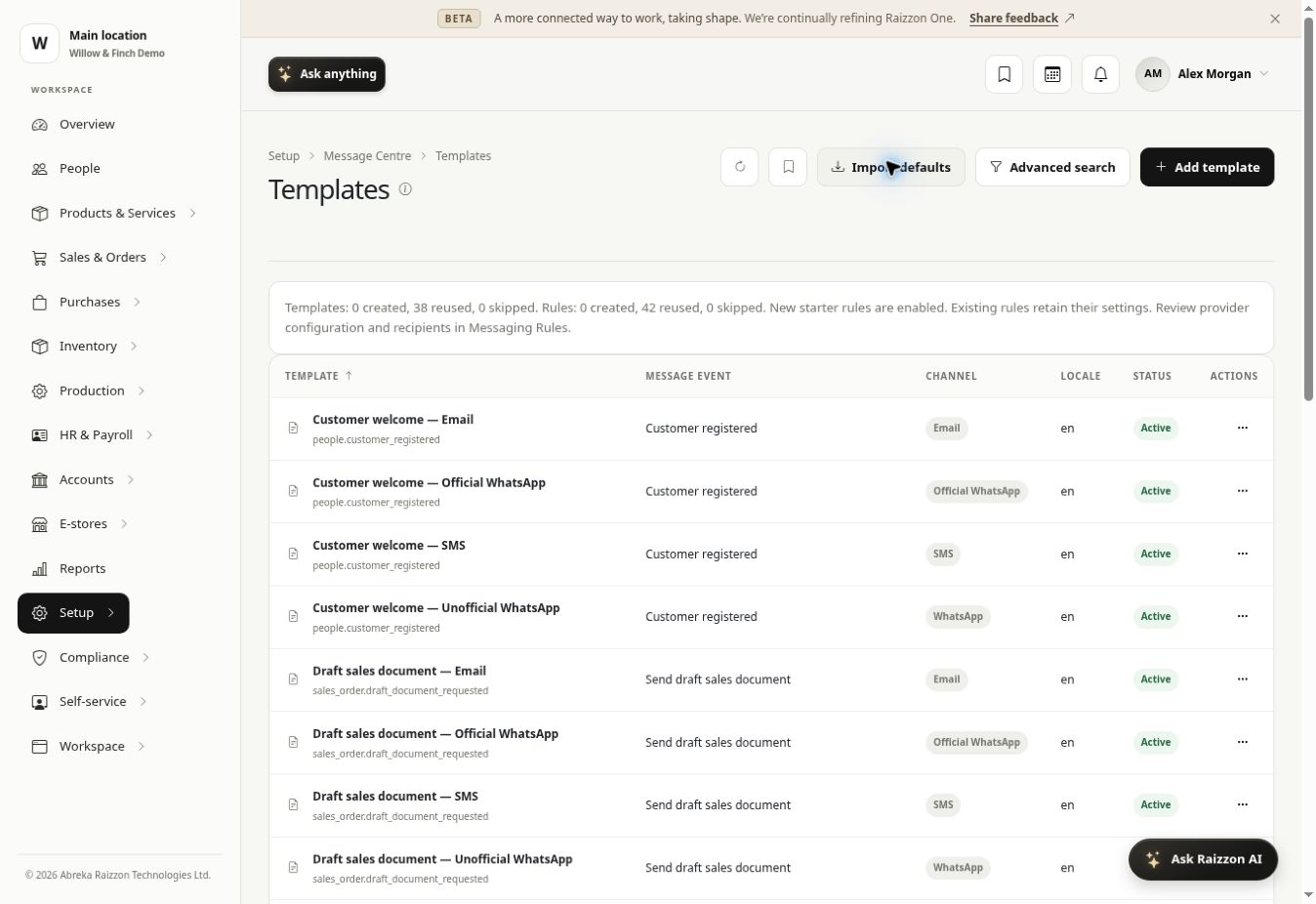
- Open Setup → Message Centre → Templates.
- Check the list for the event you want to cover. For example, look for Send payment receipt if you’re setting up receipt messages.
- Select Import defaults from the list toolbar.
- Review the Templates list for the event and channel you need. Use Advanced search if the list spans several pages.
Review a template before using it
- Check Message event, Channel, Locale and Status. For example, a payment receipt email and a payment receipt WhatsApp message can have the same event and different wording.
- Open the template and read its content. For an email, review both the subject and body. Check that the wording suits your business and that the variables match the values you expect from the record.
- Check whether the template is Active. Active templates can be selected by messaging rules. Review the rule that will use the template before relying on it for live messages.
If you need wording for a different event, channel or language, see Set up a message template.