
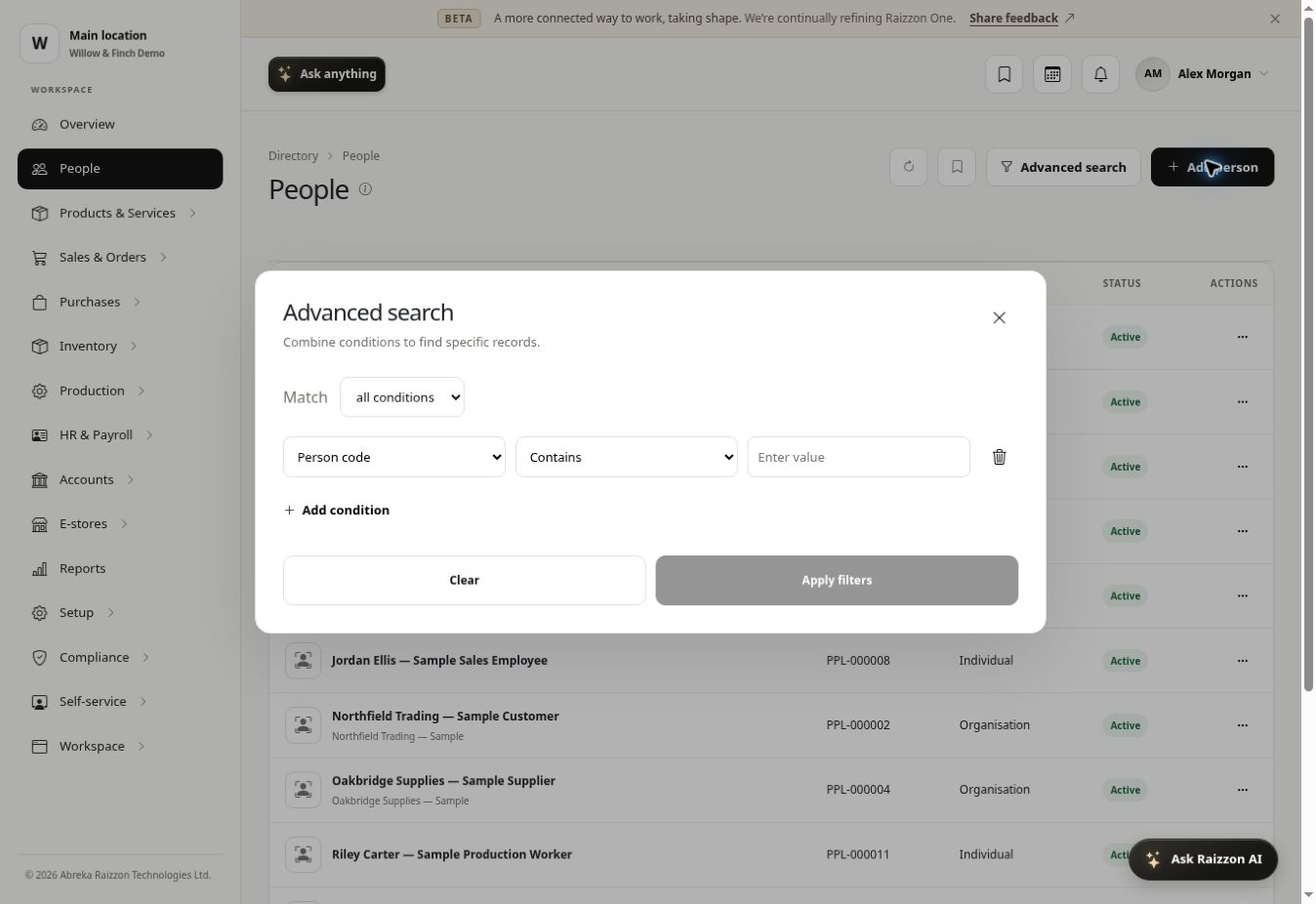
Use Advanced search on a list page to find records that meet specific conditions. For example, you can find a supplier in People, find overdue jobs in Work Orders, or look for a message template by channel. The fields available depend on the list you’re using.
Apply your first filter
- Open the list you want to search and select Advanced search.
- In the first dropdown, choose the field you want to search, such as Display name, Person code or Status.
- In the second dropdown, choose how to compare the field. For example, use Contains if you know part of a name, Equals for an exact text code, or Is for a value you select from a list.
- Enter or select the value. For example, in People, use Person code → Equals →
PPL-000010to find that exact code. - Select Apply filters. Check the results and open the matching record.
Combine conditions
Select Add condition for each additional condition. Use Match to decide how they work together.
| Match setting | What appears in the results |
|---|---|
| all conditions | Records that meet every condition. Use this to narrow the list. |
| any condition | Records that meet at least one condition. Use this to search for alternatives. |
For example, to find supplier organisations with Harbour in their display name, open People, choose all conditions, then add the following:
- Display name → Contains → Harbour
- Person type → Is → Organisation
- Role type → Is → Supplier
To look for either a name containing Harbour or a particular person code, use any condition with those two conditions.
Clear or reuse a search
- To start over, reopen Advanced search and select Clear.
- If the list offers Filter name and Save filter, use them to name the conditions for reuse. To run a saved filter, open Saved filters, select it, then select Apply filters. How long saved filters remain available depends on the module.
If you get no results
Start with one condition, such as a short part of the name. Add other conditions one at a time so you can see which one narrows the list. If the page also has a quick search box or a location selector, check those too. A quick search can combine with advanced filters, and some lists show records for the current working location.