
A user role defines what people assigned to it can do in Raizzon One. Set up roles around responsibilities. For example, an employee who prepares sales orders and a manager who reviews them may need different permissions.
Check the existing roles
- Open Setup → Security & Access → User Roles.
- Review the existing role names, descriptions, Security policies and Status. Open a similar role to check its actual permissions before deciding whether you need a new one.
- Select Add user role to create a role for a different set of responsibilities.
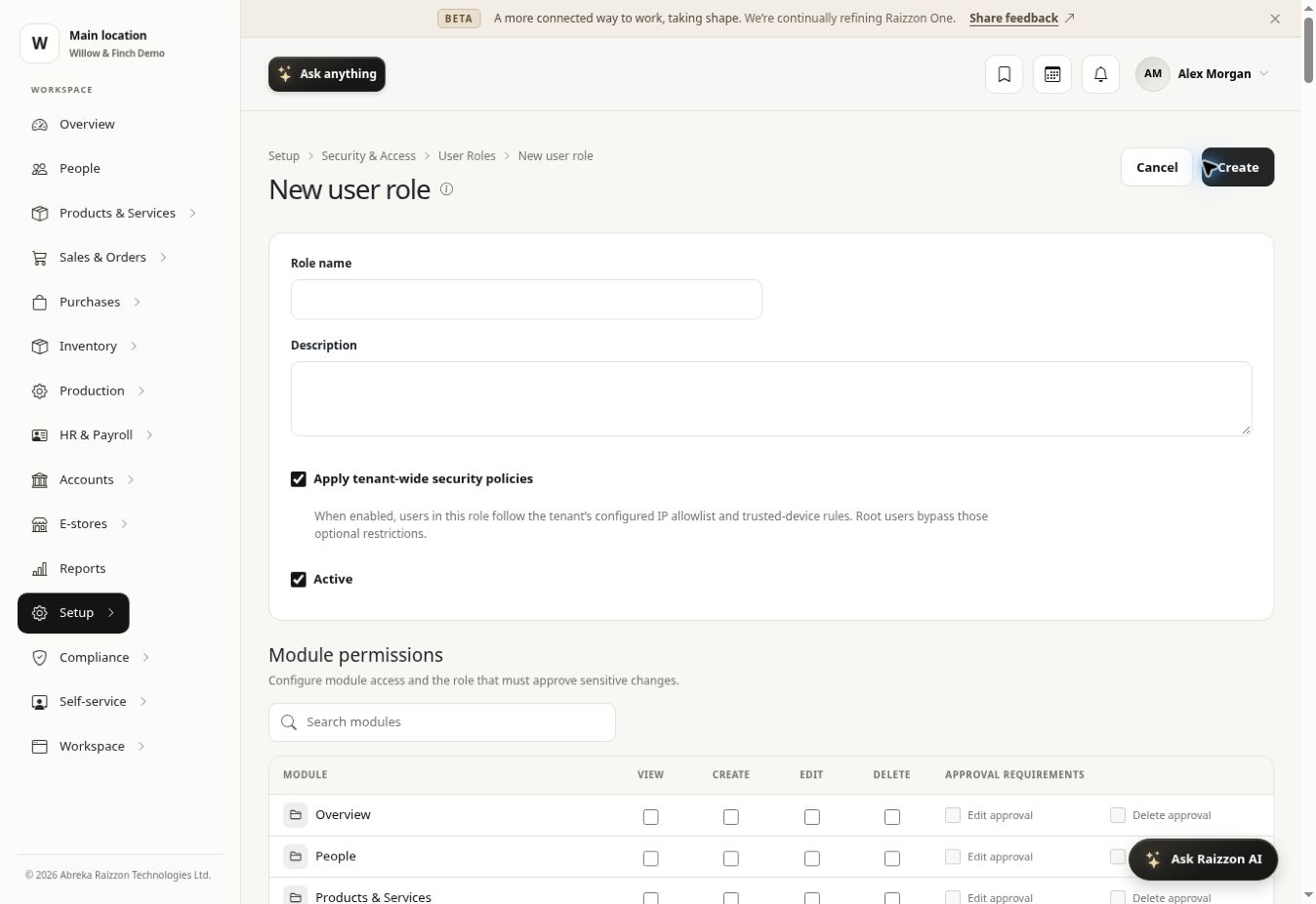
Name the role and review its sign-in policies
- Enter a Role name that identifies the responsibility, such as
Sales order entry. - In Description, explain what the role is for. For example, “Creates sales orders and views customer records.”
- Review Apply tenant-wide security policies. This is selected by default. Keep it selected for staff roles that should follow your workspace’s sign-in restrictions. See Review workspace security settings for the available controls.
Choose module permissions and approvals
Work through Module permissions one row at a time. Grant the actions the role needs for each module.
| Permission or setting | What to check |
|---|---|
| View | Can users in this role open and read records in the module? |
| Create | Do they need to add new records themselves? |
| Edit | Do they need to change existing records? |
| Delete | Does their job require removing records? |
| Edit approval | Should an edit made by this role require approval before it takes effect? |
| Delete approval | Should a deletion requested by this role require approval before it takes effect? |
For example, an order-entry role might need View and Create for sales orders and View for customer records. If those staff also correct existing orders and your business requires a review, check Edit and the corresponding Edit approval option where available.
Create and verify the role
- Review the role name, security policy setting and permissions before selecting Create.
- Find the new role in User Roles and reopen it. Check the saved permissions against the responsibilities you intended.
- Assign the role from Setup → Security & Access → Users when setting up a user. Check the user’s location access separately so they can work at the sites they need.
If Add user role is missing, ask your workspace administrator to check your access to create roles.