
Set operating hours for each site. For example, your shop might open from 09:00 to 18:00 on weekdays, close early on Saturday and stay closed on Sunday. A warehouse under the same company can have a different schedule.
Open the location settings
- Open Setup → Companies and Locations.
- Select the company and open Locations.
- Select the location you want to configure. Check its name before editing, especially if the company has several sites.
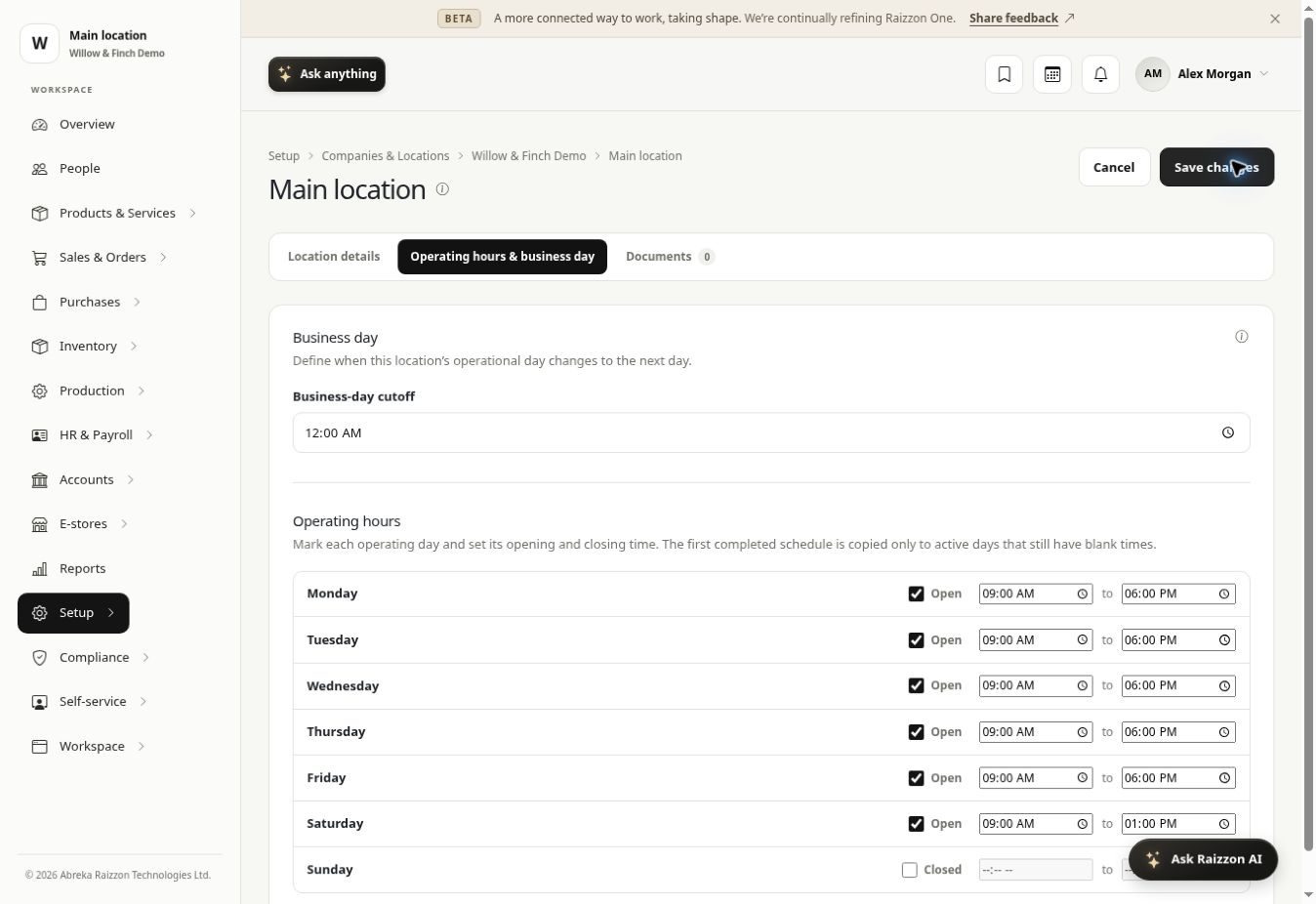
- Open Operating hours & business day and select Edit.
Set the business-day cutoff
Under Business day, set Business-day cutoff to the time when the location’s operational date should change. This setting is used for operational dates and reports when work continues past midnight.
For example, use 00:00 when the operational day changes at midnight. If a site works into the early morning and you want activity before 03:00 to count toward the previous business day, choose 03:00. Set the cutoff according to how your team closes and reports its business day.
Set the weekly schedule
- Under Operating hours, mark each day the site operates as Open.
- Enter the opening and closing times for each open day. When you complete the first schedule, Raizzon One copies it to open days whose times are still blank.
- Adjust days that have different hours. For example, if Monday to Friday are
09:00to18:00, change Saturday’s closing time to13:00if the site closes early. - Leave days without operations marked Closed. Their time fields are disabled.
- Review all seven days before saving, especially any days filled in automatically.
Save and verify the schedule
Select Save changes. Once the changes take effect, reopen Operating hours & business day and verify the cutoff and each day’s hours. If Edit is missing, ask your workspace administrator to check your access to edit locations.