
Use a Location override when one site needs to run a workflow differently from the rest of your workspace. For example, a workshop may start work orders manually while other sites create them when a sales order is confirmed.
Check the current policy
- Open Setup → Operational Policies.
- Find the policy and check its Module. For this example, open Create work orders when under Sales / POS.
- Check the Tenant default and read the Location overrides section to see whether the site already has its own value.
See Review operational policies for how the core default, tenant default and location overrides work together.
Set the override
- Select Edit.
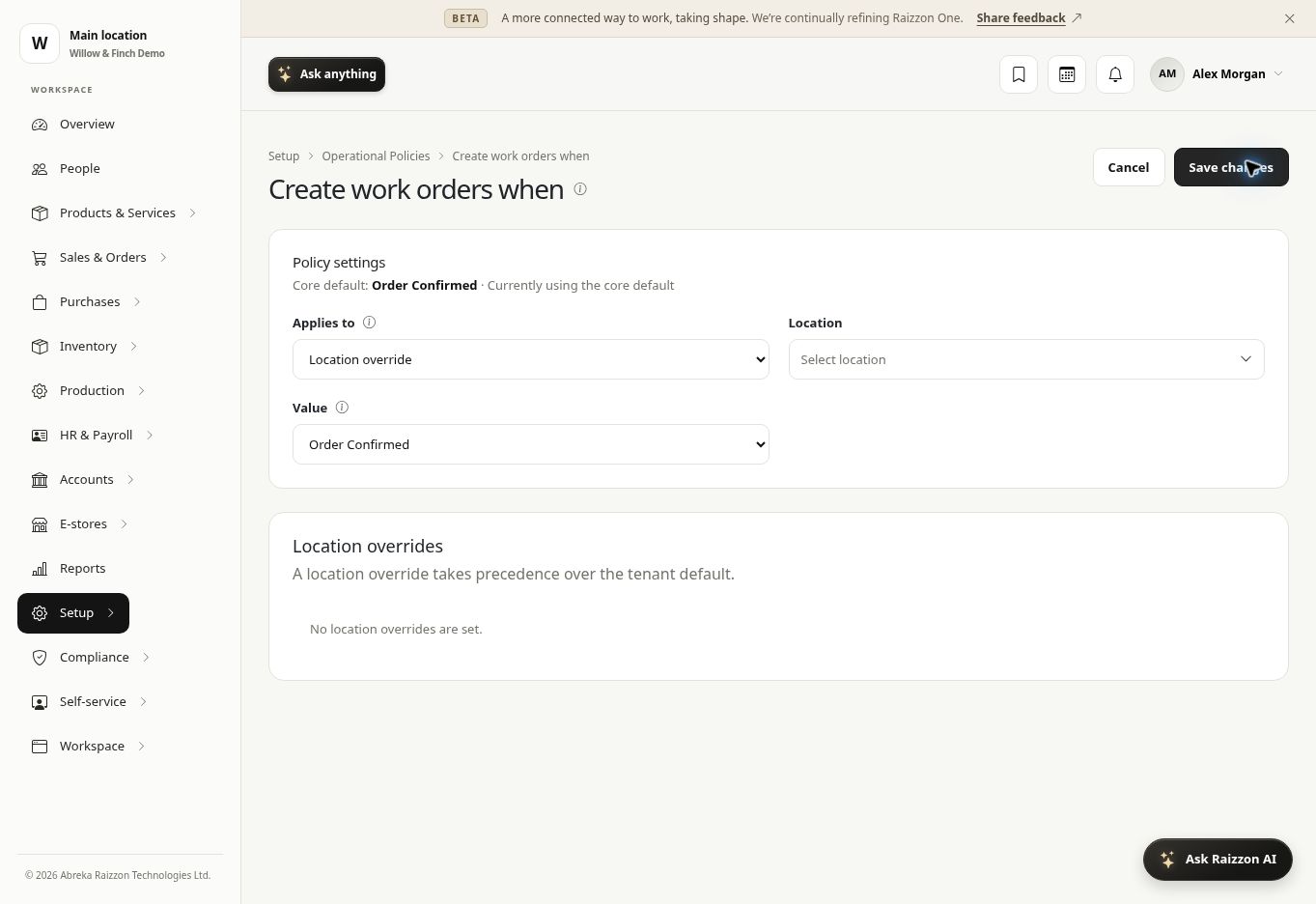
- Under Applies to, choose Location override.
- Under Location, select the site that needs a different value. Check the location name before continuing.
- Under Value, choose the behaviour for that site. For example, select Manual if staff should start the work order from the sales window.
- Review the selected location and value, then select Save changes.
Verify which value applies
Reopen the policy and check Location overrides for the site and value you selected. The override takes precedence at that site. Locations without an override use the tenant default. Use History to review changes to the policy.
If Location override is unavailable, check the Location override column on the policy list to see whether that policy allows it. If Edit is missing, ask your workspace administrator to check your access.