
Use Export when you need a ZIP archive of supported Raizzon One workspace records. Raizzon One prepares the archive in the background, so you can return to it after submitting the request.
Request the export
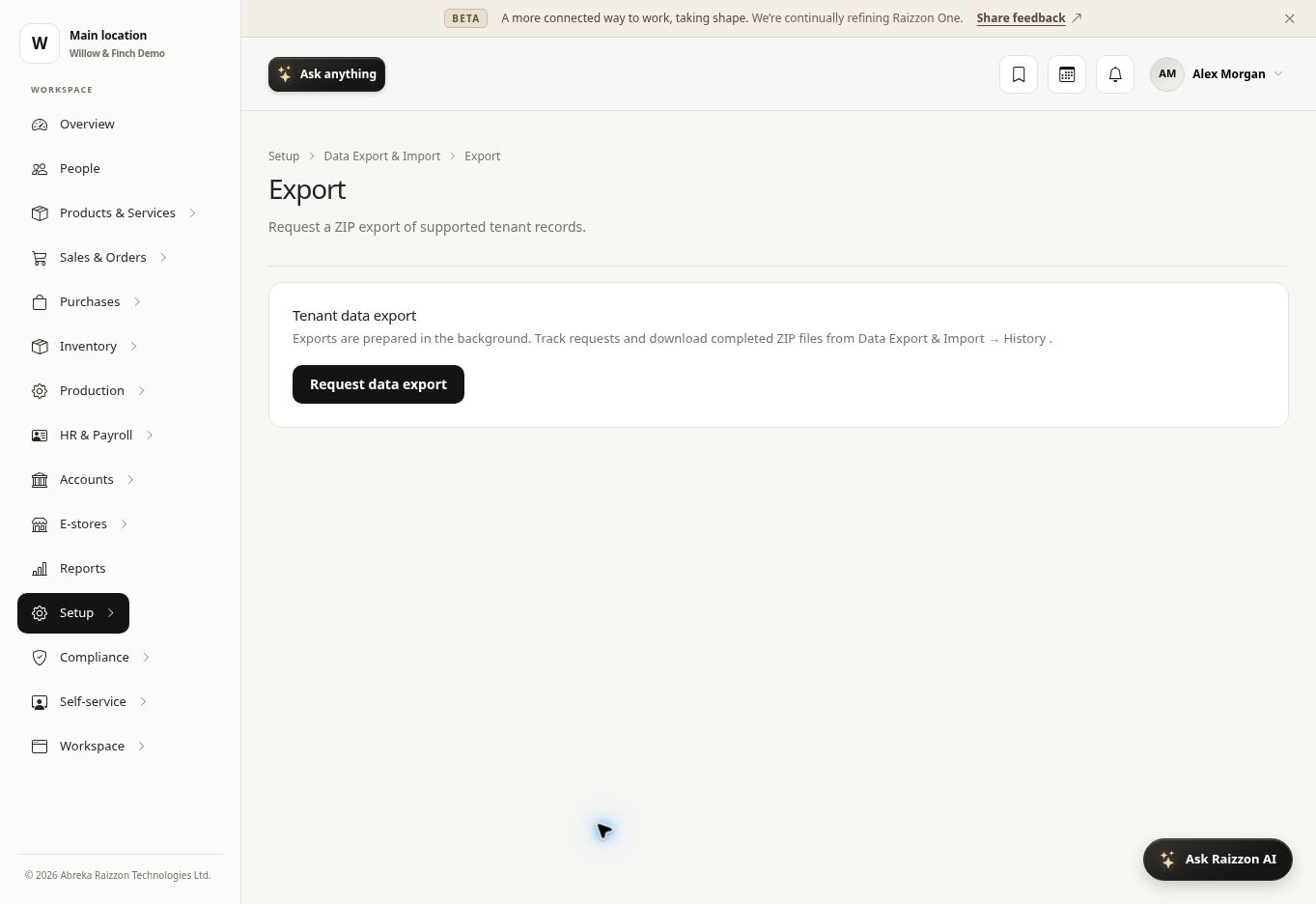
- Open Setup → Data Export & Import → Export.
- Under Tenant data export, select Request data export.
- Open the Data Export & Import → History link on the page to track the request.
Track and download the archive
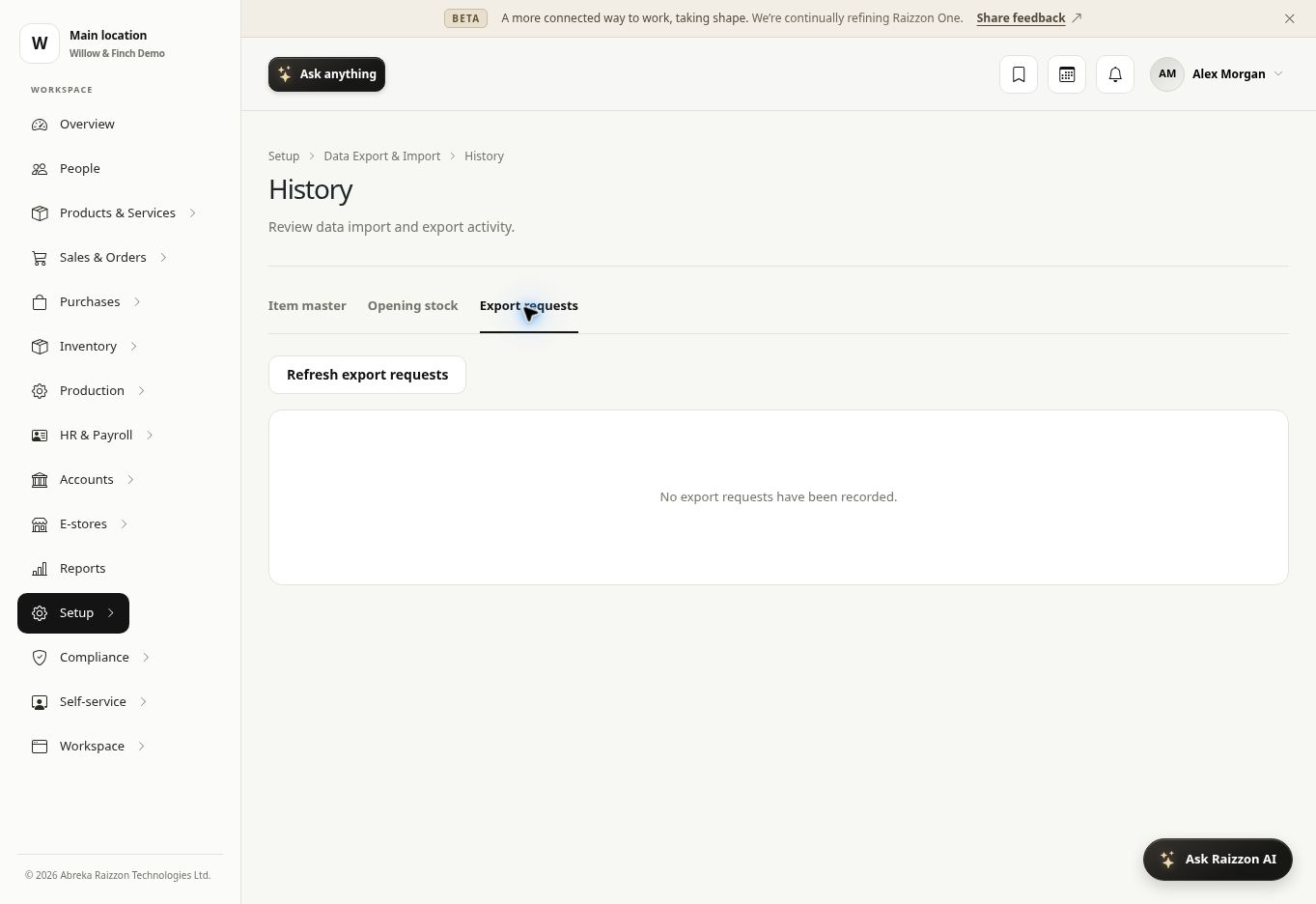
- In History, select Export requests. The Item master and Opening stock tabs show import activity.
- Find your request and check its status. If it’s still being prepared, use Refresh export requests to check again.
- When the archive is ready, use the download control on the request to save the ZIP file.
- Check your browser’s downloads and open the ZIP to verify that it contains the records you expected. Store it somewhere only authorised people can access.
If you can’t find or download the archive
- If Export requests is empty, check that you’re in the workspace where you requested the export, then select Refresh export requests.
- If the archive failed, check the request for an error before submitting another one.
- If the download has expired, return to Export and request a new archive.
- If Request data export is missing, ask the workspace owner to check export access.