
Before connecting an external service to Raizzon One, check which company or location should own the connection and which environment you intend to use.
Choose where to configure the connection
| Menu option | What owns the connection | When to start here |
|---|---|---|
| Company Integrations | One company | The provider connection belongs to a legal company. Check the company name against the business registered with the provider. |
| Location Integrations | One location | The provider connection belongs to an operating site. Check the location name against the branch, shop or other site that will use it. |
If you manage several companies or locations with similar names, identify the exact record before opening the form.
Open a company integration
- Open Setup → Integrations → Company Integrations.
- Check the list for an existing connection for the company and provider.
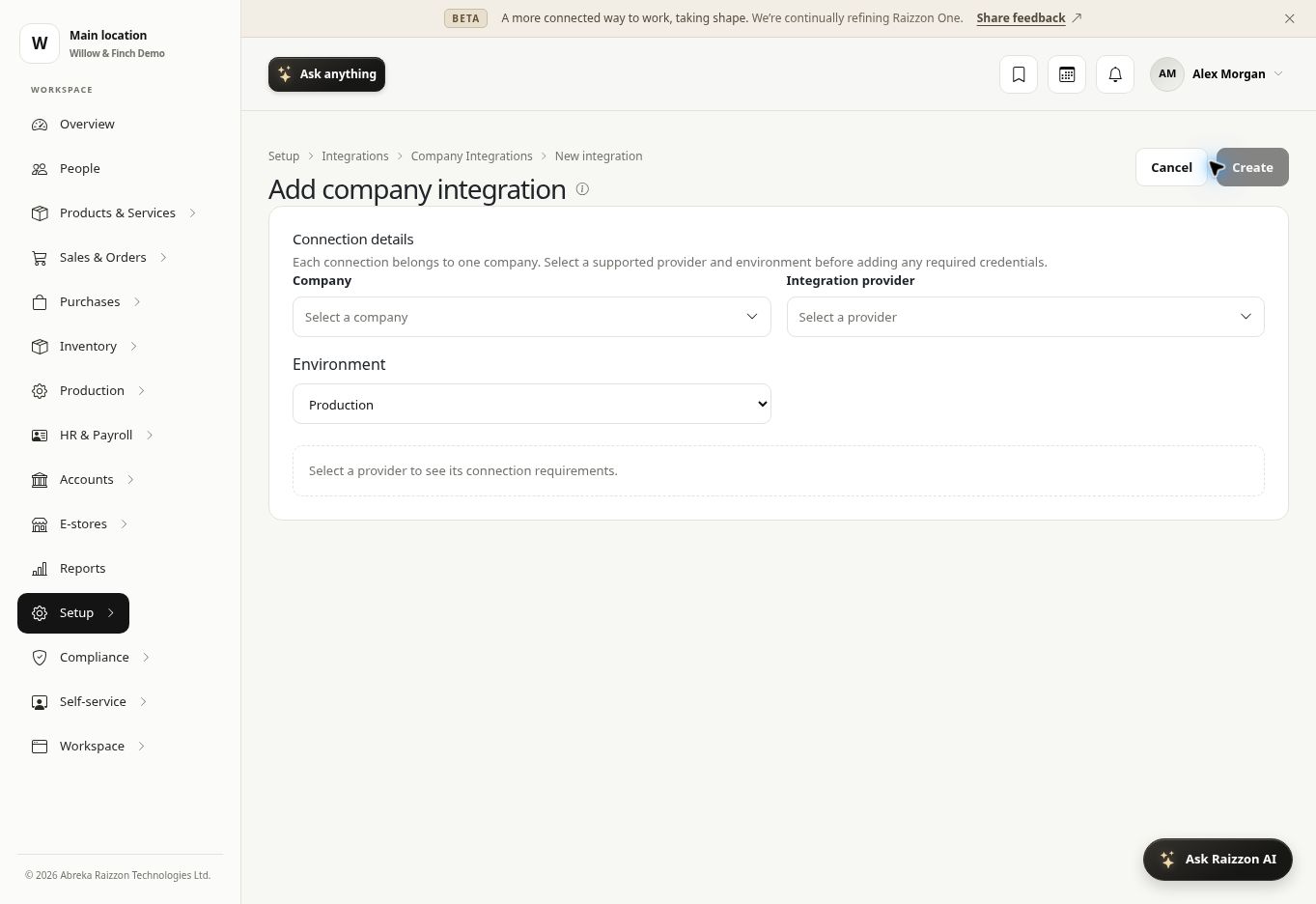
- Select Add integration. The form is titled Add company integration.
- Under Company, choose the legal company that owns the connection.
Open a location integration
- Open Setup → Integrations → Location Integrations. The list page is titled Integrations.
- Check the list for an existing connection for the location and provider.
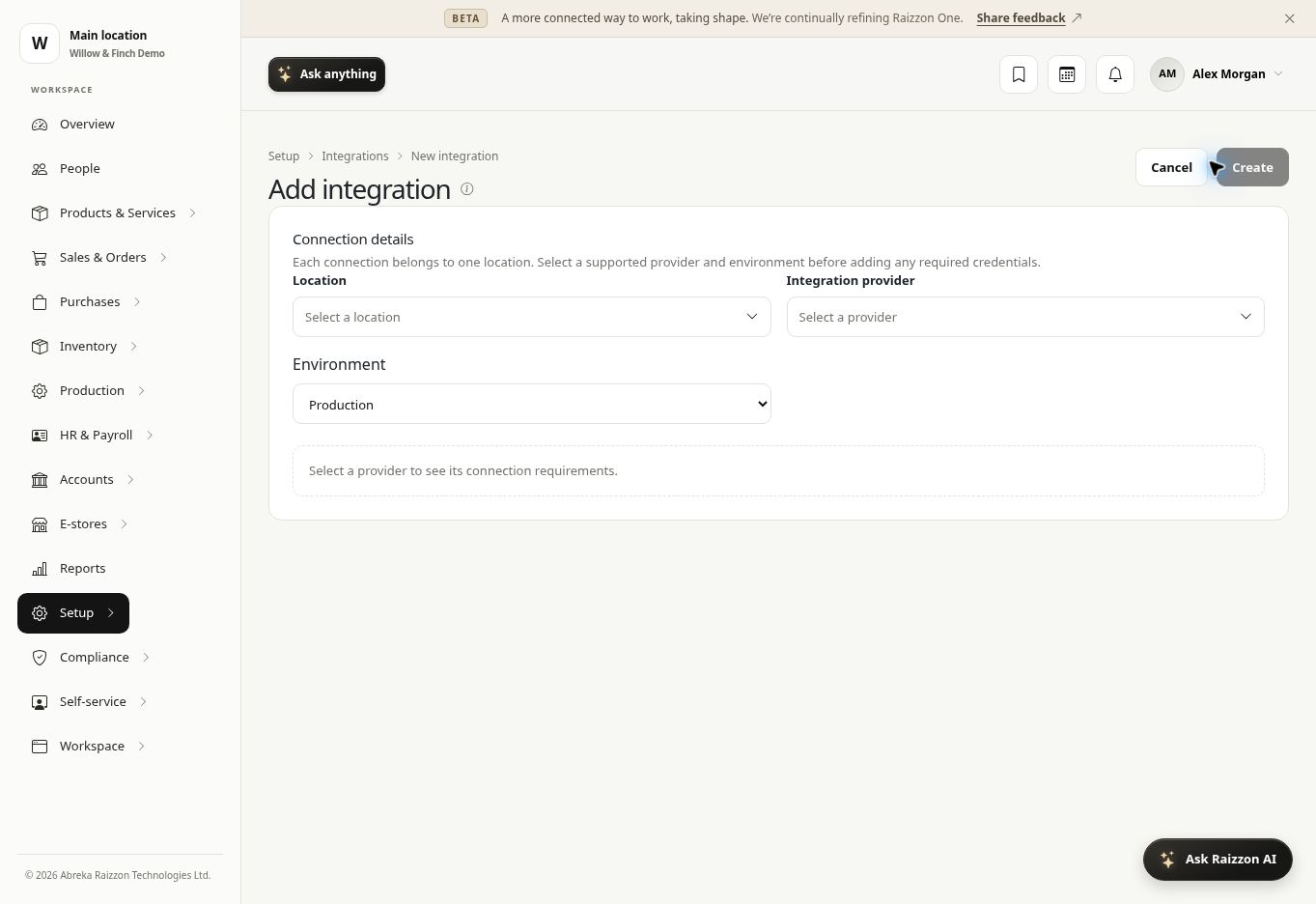
- Select Add integration.
- Under Location, choose the operating site that will use the connection.
Select the provider and environment
- Under Integration provider, select the service you intend to connect. Raizzon One shows the connection requirements for that provider after you select it.
- Check Environment. The new form opens with Production selected. Choose Sandbox when you’re setting up a test connection and the provider supports it, or Production when you’re setting up a live connection.
- Use the provider details and any credentials issued for the environment you selected. Before selecting Create, check the company or location, provider and environment together.
- After creating the connection, return to the list you started from and open the entry to verify it.
If you can’t find the provider, check whether it belongs under Company Integrations or Location Integrations. If Add integration is missing, ask your workspace administrator to check your access to create integrations.